Versions and activation
Every saved change to a workflow becomes a numbered version. One version at a time can be active, and that is the one your webhook, schedule and connector triggers run. You can keep editing without touching what runs in production.
How versions are created
When you save a workflow and its nodes, connections or settings have changed, Flero records a new version: Version 1, Version 2, and so on. Saving with no changes does not create a version.
Versions are kept in order. Nothing is overwritten.
The version menu
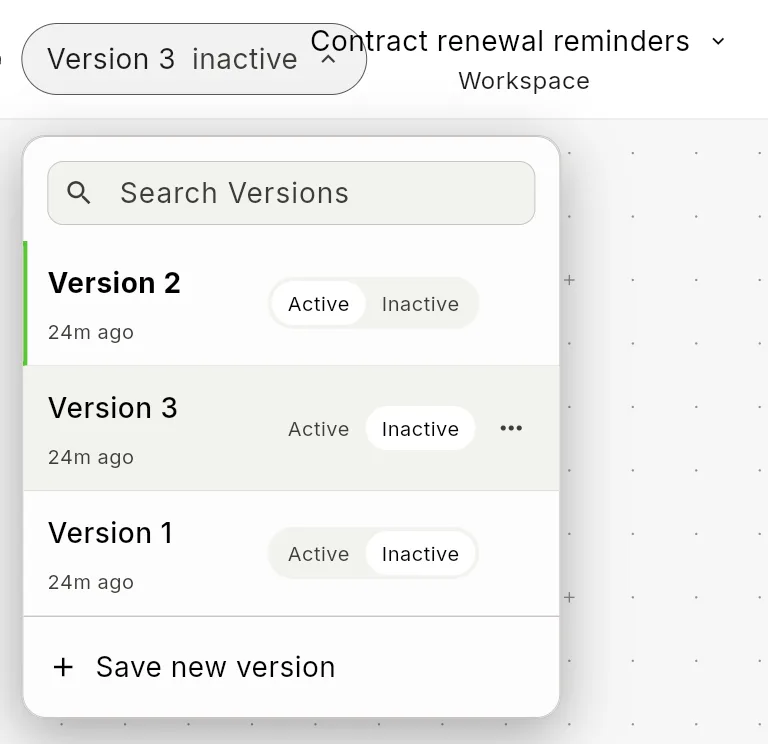
Click the version label in the editor header to open the version menu.
| Element | What it does |
|---|---|
| Search Versions | Filters the list by version number |
| Version rows | One row per version, newest first. The active version is pinned at the top. |
| Active / Inactive toggle | Activates or deactivates that version |
| Save new version | Saves your current changes as a new version |
Click a version row to load that version into the editor and look at it.
Renaming and deleting individual versions is not available yet.
Activate a version
- Open the version menu.
- Set the version you want to Active.
- Confirm in the Set Version N as Active? dialog.
What happens:
- The version you picked becomes the active version. Any previously active version stays saved but becomes inactive.
- Webhook, schedule and connector event triggers use the new version straight away.
- The workflow shows as Active on the Workflows page.
Deactivate a version
Set the active version to Inactive. The workflow then has no active version:
- Its triggers stop starting runs.
- It shows as Inactive on the Workflows page.
- The workflow and all its versions stay available for editing.
Which version runs
| How the run starts | Version used |
|---|---|
| A webhook, schedule or connector event trigger | The active version |
Run in the editor, or the execute endpoint of the Flero API |
The latest saved version, even if it is not active |
| A form submission | The latest saved version |
This means you can save and test changes while the active version keeps serving production. Activate the new version when you are happy with it.
A workflow that has never been saved has no version and cannot run. If you click Run on a workflow with no version, Flero offers Publish & Run, which saves the current state as the first version and runs it.
Each run records the version it used, so execution detail always matches what actually ran.
Tips
- Edit freely, activate deliberately. Saving never changes what your webhook, schedule and connector triggers run. Only activation does.
- Forms are the exception. A form submission runs the latest saved version. Avoid saving half-finished changes to a workflow with a live form.
- Roll back by activating an older version. Open the version menu and set the earlier version to Active.
- Test before you activate. Run the latest version in sandbox mode first.
Related
Found something out of date? This page lives in the Flero docs content set.