Rerun, stop & pause
Control a run from the workflow editor. Stop ends a run. Pause holds it between nodes. Rerun starts a finished run again with the same trigger data.
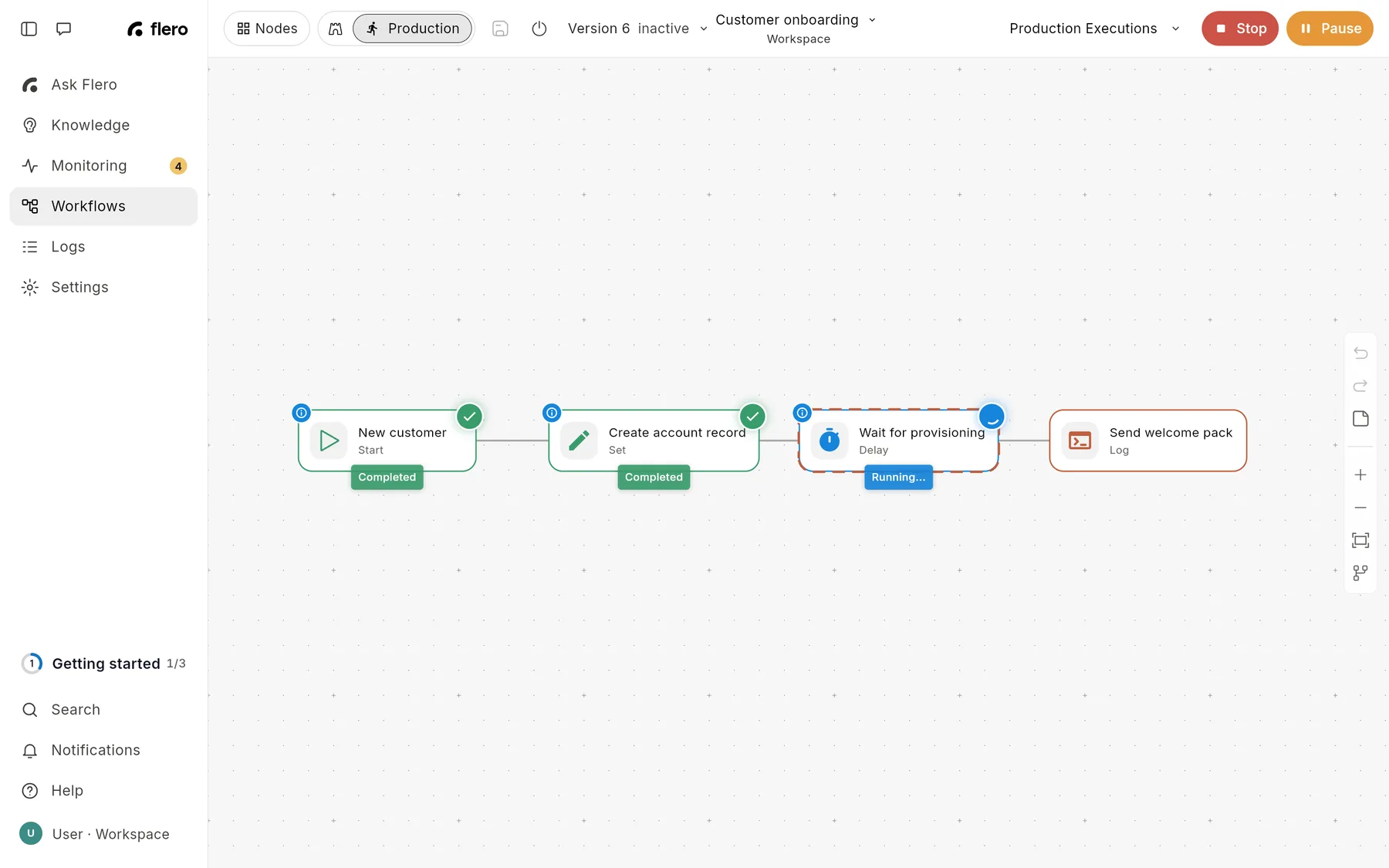
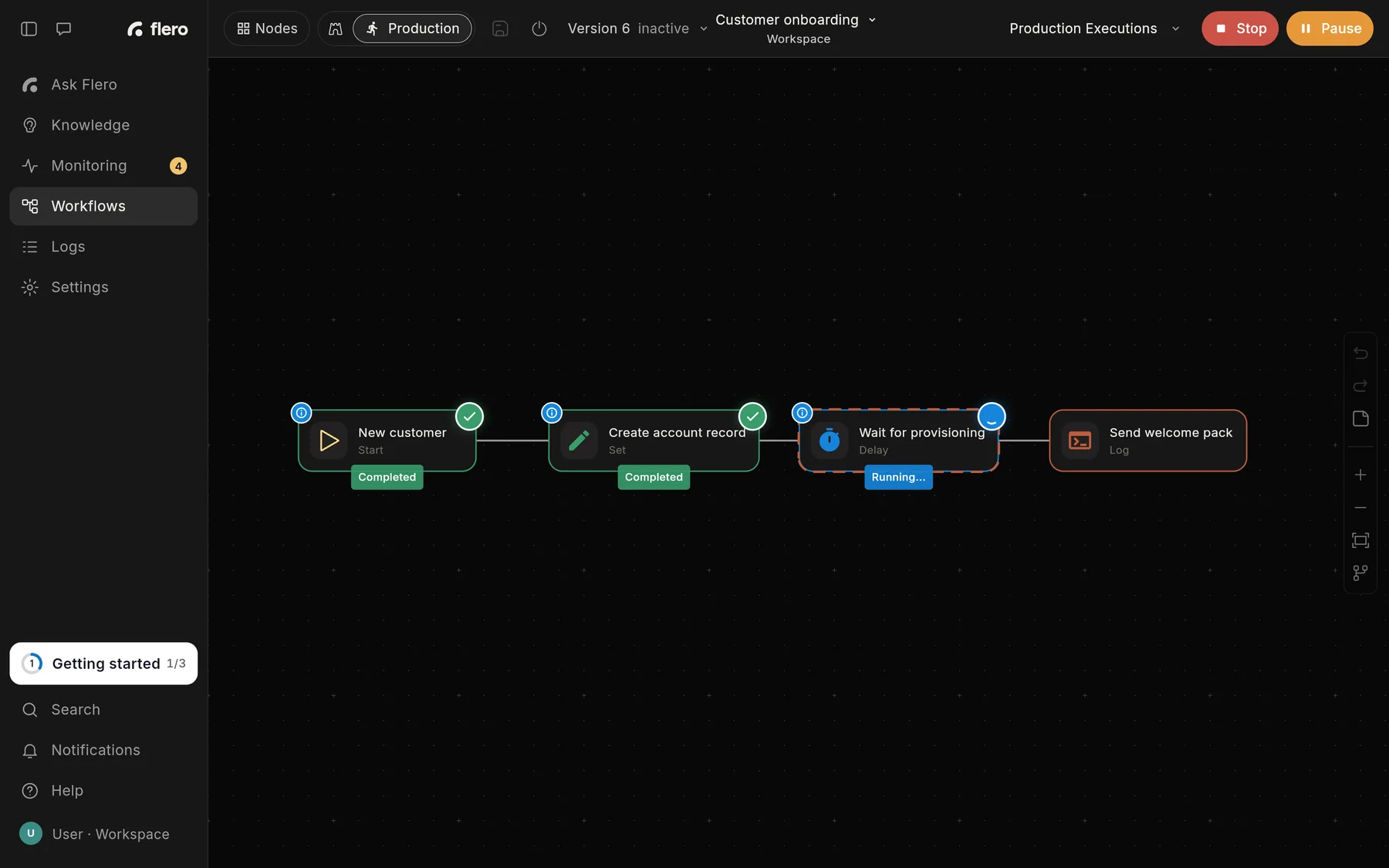
The run controls
The controls sit in the editor header, where the Run button is. They change with the state of the run you are looking at.
| Run state | Buttons |
|---|---|
| No run selected | Run Workflow in Production, Test Run in Sandbox. Choose Trigger when the workflow has more than one trigger. |
| Pending, running or waiting | Stop (red) and Pause (yellow) |
| Paused | Stop and Resume (blue) |
| Finished | Back to edit |
Each action confirms with a toast: "Execution stopped", "Execution paused" or "Execution resumed".
To control a run that started elsewhere, such as from a webhook or a schedule, open the workflow and pick the run in the executions list.
Stop
Stop ends the run. The node in flight is interrupted, no further nodes run, and the run ends as Stopped.
Stop works on runs that are pending, running, paused or waiting for a decision. It takes effect even when no worker is online, so you can always clear a queued or stuck run.
Things to know:
- Work already done stays done. If a node had already sent an email or written a record, Stop does not undo it.
- Stopping a waiting run cancels the request. An approval link for that run stops working.
- A stopped run sends no completion notification.
- Stopped runs can be rerun. See Rerun.
Pause and Resume
Pause holds the run at the next node boundary. The node that is running now finishes first. The run then shows as Paused and waits.
Press Resume to carry on from the next node. Press Stop to end the run instead.
Use Pause to look at intermediate output before the next steps run, or to hold a run while you check something outside Flero.
Pause is different from waiting for an approval. A paused run waits for you to press Resume. A run waiting for a decision continues when an approver answers. See Approval basics.
Rerun
Rerun starts a finished run again, as a new execution. The original run is not changed.
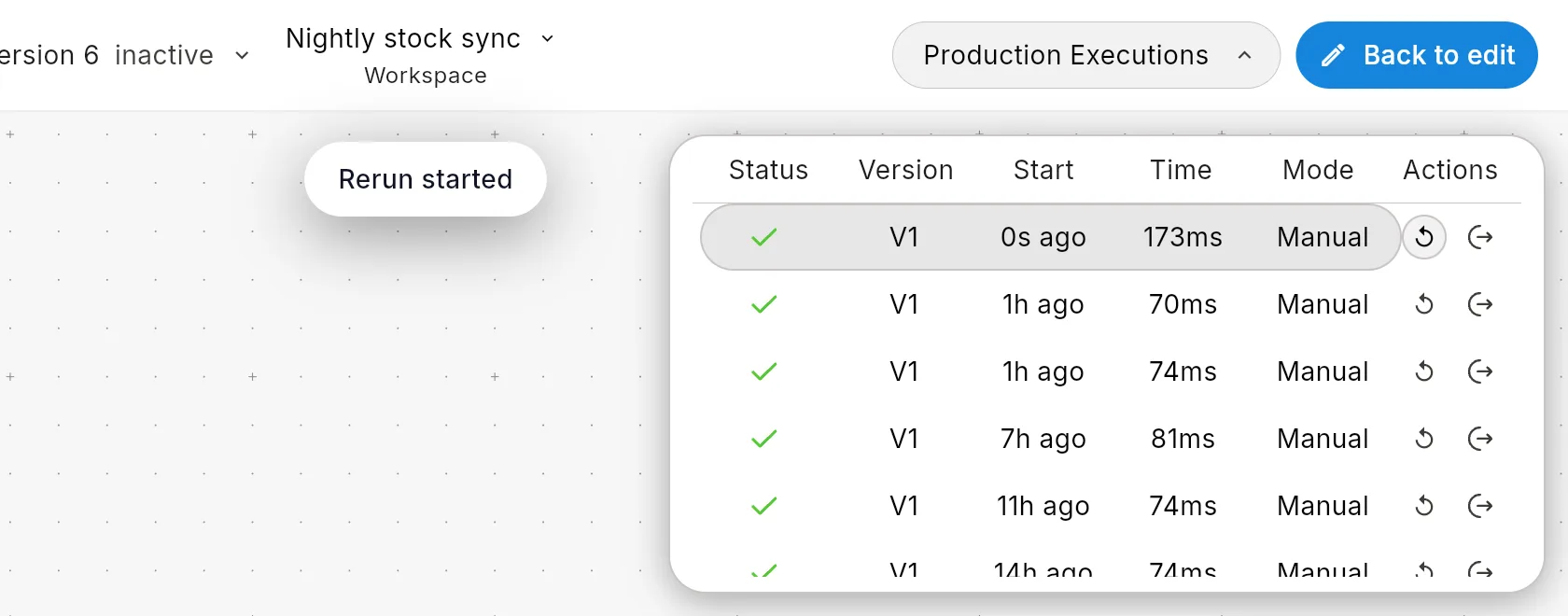
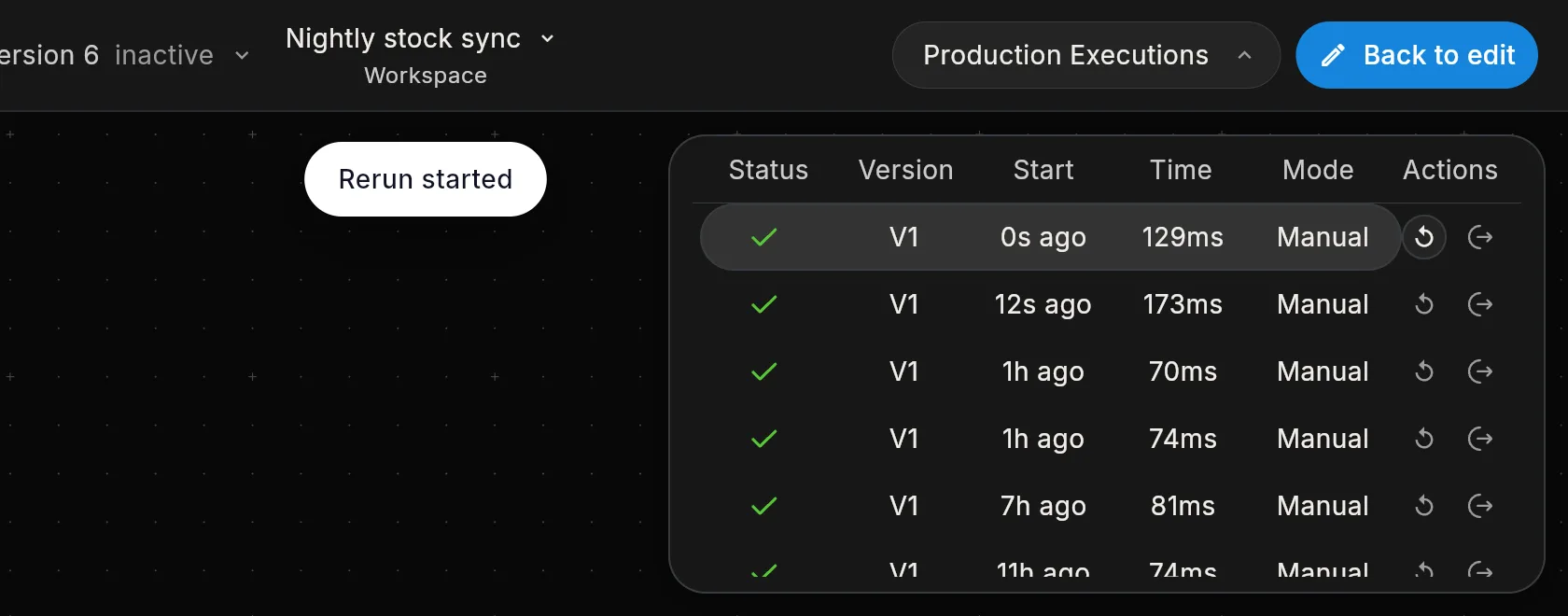
- Open the workflow and click Production Executions (or Sandbox Executions) in the header.
- Hover the run you want.
- Click the Rerun icon in the Actions column.
The toast reads "Rerun started", and the editor selects the new run.
What a rerun uses
| A rerun uses | |
|---|---|
| Trigger data | The same trigger data as the original run |
| Workflow version | The workflow's active published version, or its latest version if none is published. Not necessarily the version the original ran. |
| Mode | Always live. A rerun of a sandbox run does not stay in sandbox mode. To repeat a dry run, use Test Run with Sandbox selected. |
Because a rerun uses the current version, it is the quickest way to check a fix: change the workflow, publish, and rerun the run that failed.
Which runs can be rerun
You can rerun runs that ended as Success, Failed (shown as Error in the list) or Stopped. The Rerun icon does not appear for runs that are still in progress or waiting.
If Flero cannot find the original trigger data, the rerun is refused with "Original trigger data unavailable". This can happen with older runs. Try a more recent run.
Before you rerun
A rerun repeats every node, including ones that send emails, charge cards or write records. If the original run got partway through, those steps run again. Check what the original run already did before you rerun it.
No worker running
Runs are carried out by workers. If you start a run while no worker is online, the editor shows a warning for a few seconds:
No worker is running right now, so this run is queued and will start as soon as one comes back.
The run waits as Pending and starts when a worker comes back. You can Stop it while it waits. If no worker picks it up for a long time (24 hours by default), Flero closes it as Timed out.
If a worker stops in the middle of a run, Flero ends that run as Failed within about three minutes. It is not re-run automatically. Check what it already did, then use Rerun.
Tips & gotchas
- Stop before you edit a hung run. A node with no Timeout runs until it returns or you press Stop. Then set a Timeout (ms) on it. See Retries & error handling.
- Pause does not interrupt a long node. It waits for the current node to finish. Use Stop to end a node that is hung.
- For runs started by a webhook or a schedule, Stop and Pause may not reach the running nodes straight away, and some nodes may still run after you press Stop. The run is still recorded as Stopped.
- The execution detail page is read-only. Rerun, Stop and Pause are in the editor only.
Related
Found something out of date? This page lives in the Flero docs content set.