Sticky notes
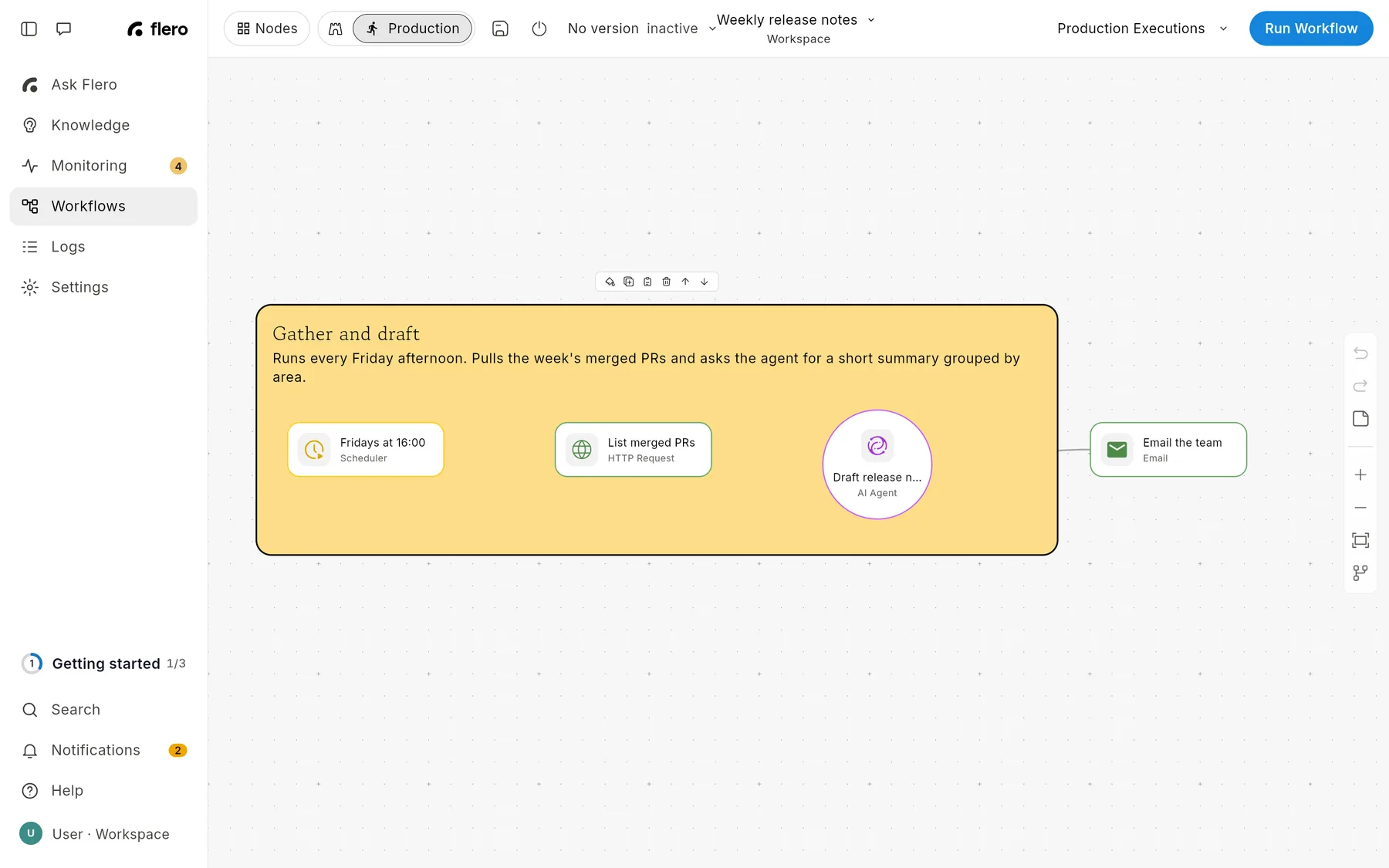
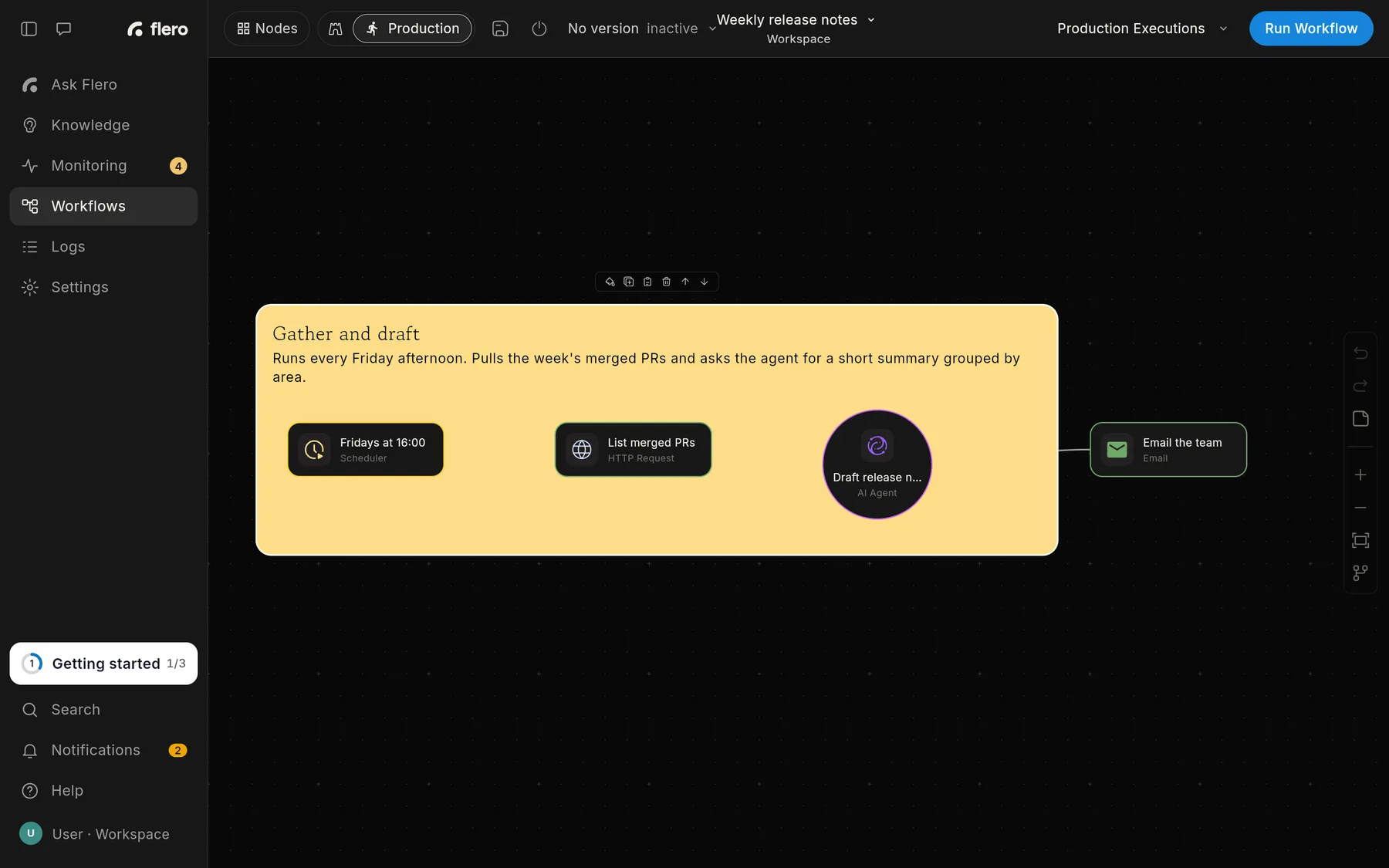
Sticky notes let you write on the canvas. Use them to explain a step, label a group of nodes, or flag work in progress. Notes are saved with the workflow and never run.
Add a note
Click Add note in the floating toolbar on the right edge of the canvas. A new note appears, 200 × 200 pixels, in the default yellow.
Write in a note
Double-click the note to edit it. The first line is the headline; everything after it is the body. Click outside the note to finish.
Move and resize
- Move: drag the note.
- Resize: drag any of its four corners.
Notes sit behind nodes, so you can draw a large note around a group of nodes to label it.
The note toolbar
Hover over a note to see its toolbar:
| Button | What it does |
|---|---|
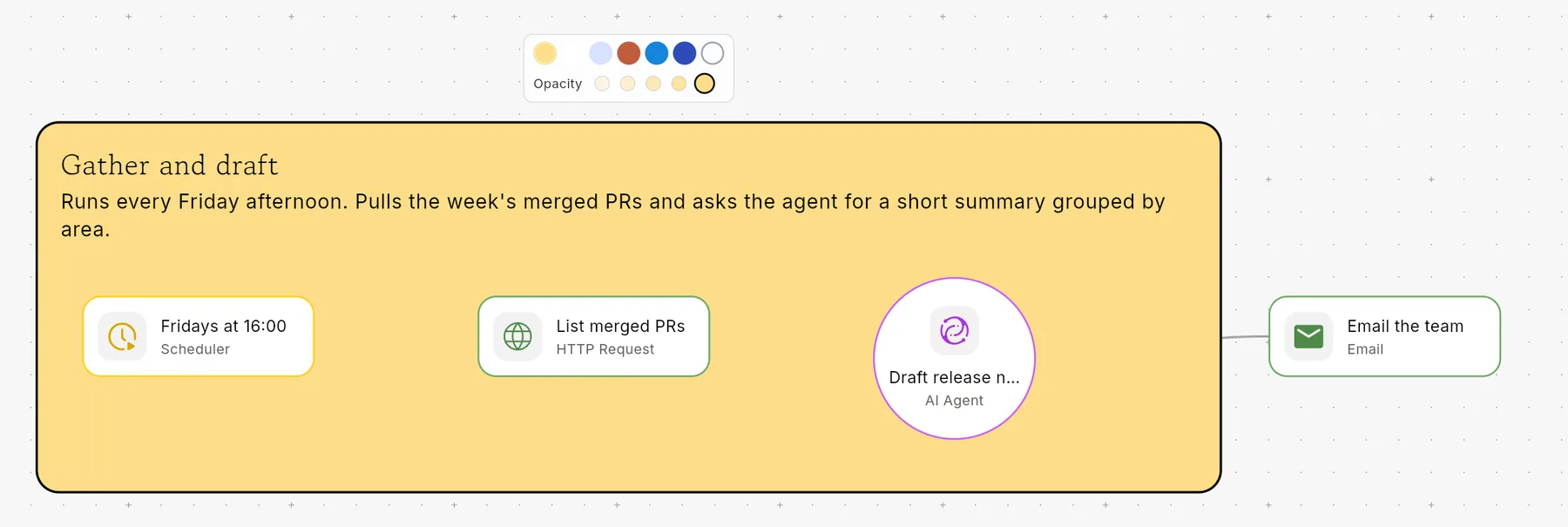
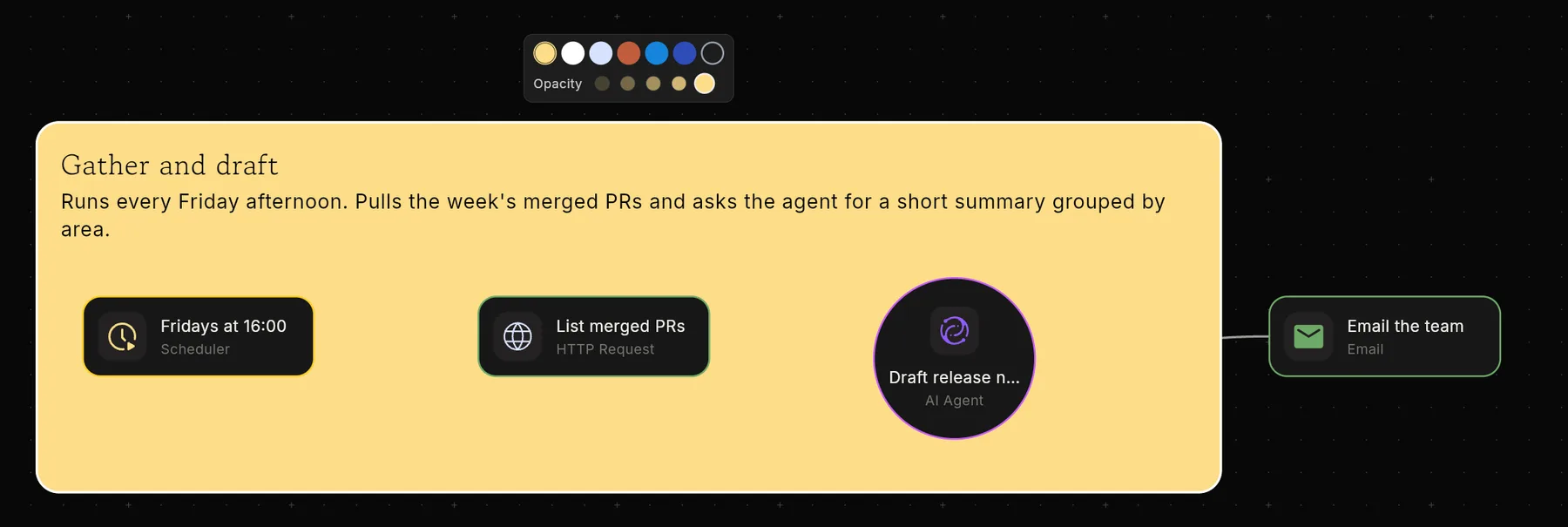
| Color | Pick one of seven styles: yellow (default), white, light blue, terracotta, blue, dark blue, or an outline with no fill. The strip also sets the note's opacity. |
| Duplicate | Copy the note. |
| Copy content | Copy the note's text to your clipboard. |
| Delete | Remove the note. |
| Bring forward / Send backward | Change which note is on top where notes overlap. |
Tips & gotchas
- Notes don't affect runs. They are skipped during execution and are not counted when you select nodes to convert into a sub-workflow.
- Text colour adjusts itself. Flero picks black or white text so it stays readable on the colour and opacity you choose.
- Use notes for handovers. A short note on why a step exists saves your teammates time. See Working with your team.
Related
Found something out of date? This page lives in the Flero docs content set.