Converting to a sub-workflow
Select a group of nodes and turn them into their own workflow in one step. Flero moves the nodes into a new workflow and puts a Sub-Workflow node in their place, wired the same way. Use it to break up a large workflow or to reuse a set of steps.
Convert a selection
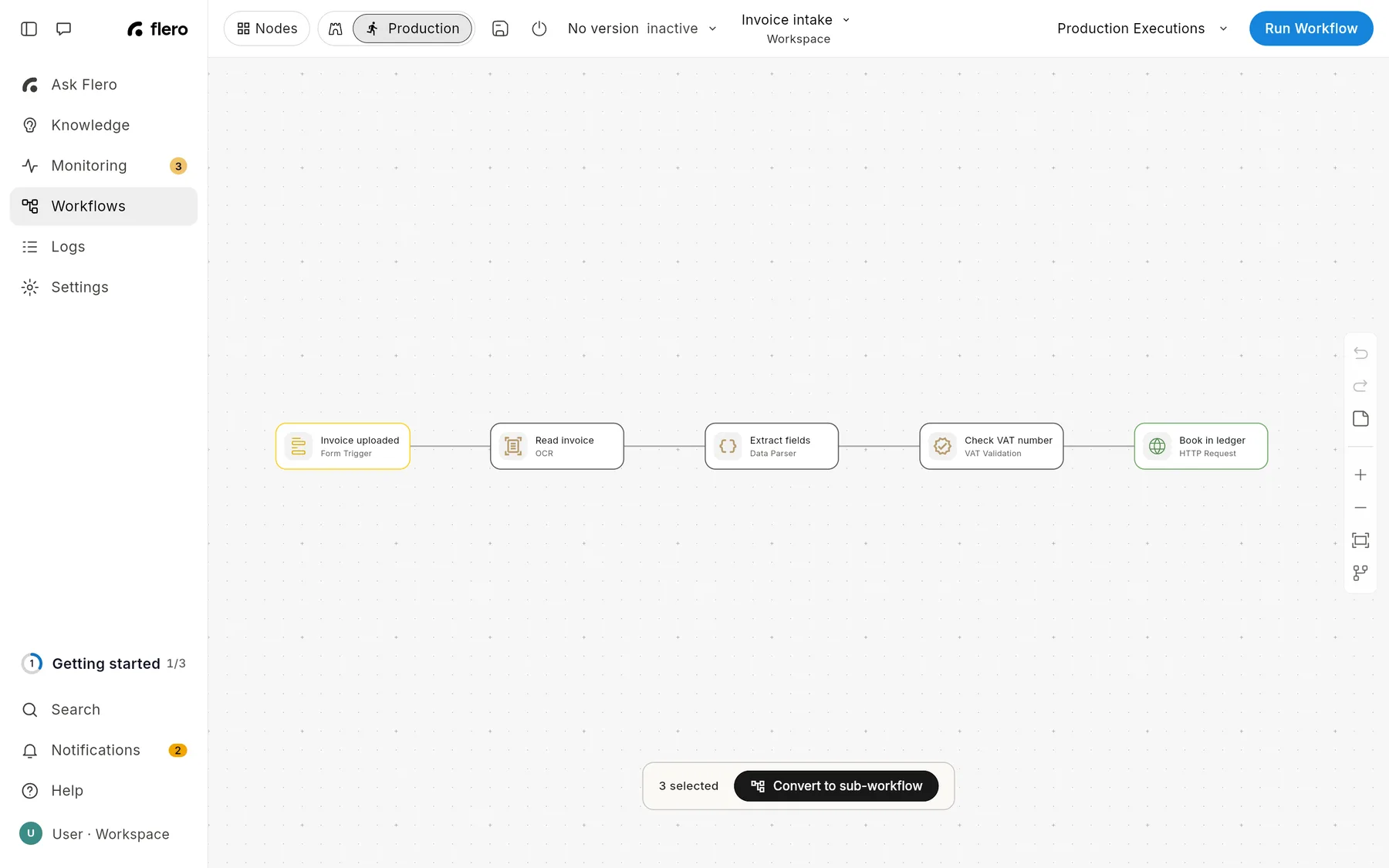
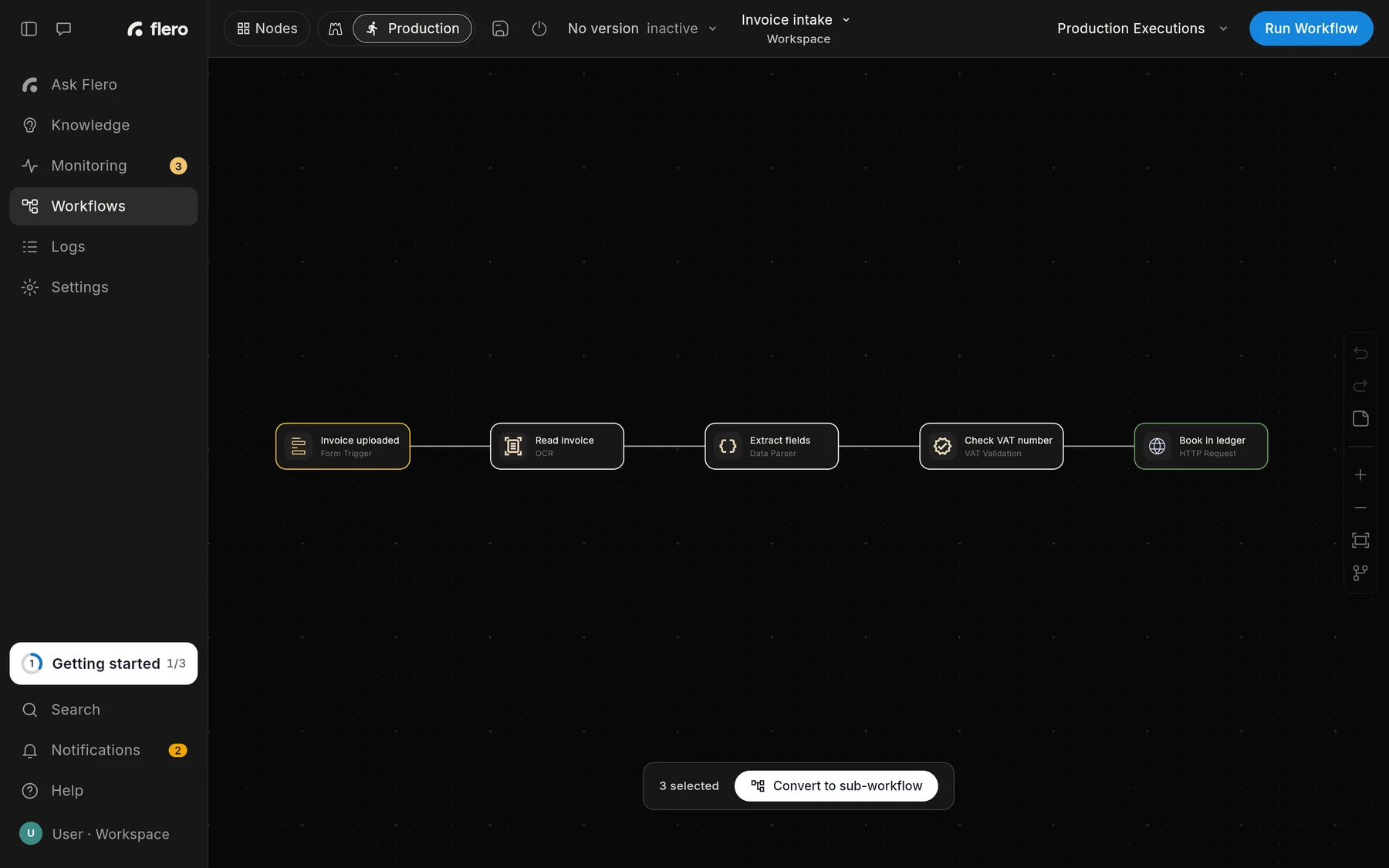
- Select the nodes to move. Drag a selection box around them, or
⌘/Ctrl+ click each one. You need at least two nodes. - Click Convert to sub-workflow in the bar at the bottom of the canvas. (The workflow menu next to the name has the same action: Convert selection to sub-workflow.)
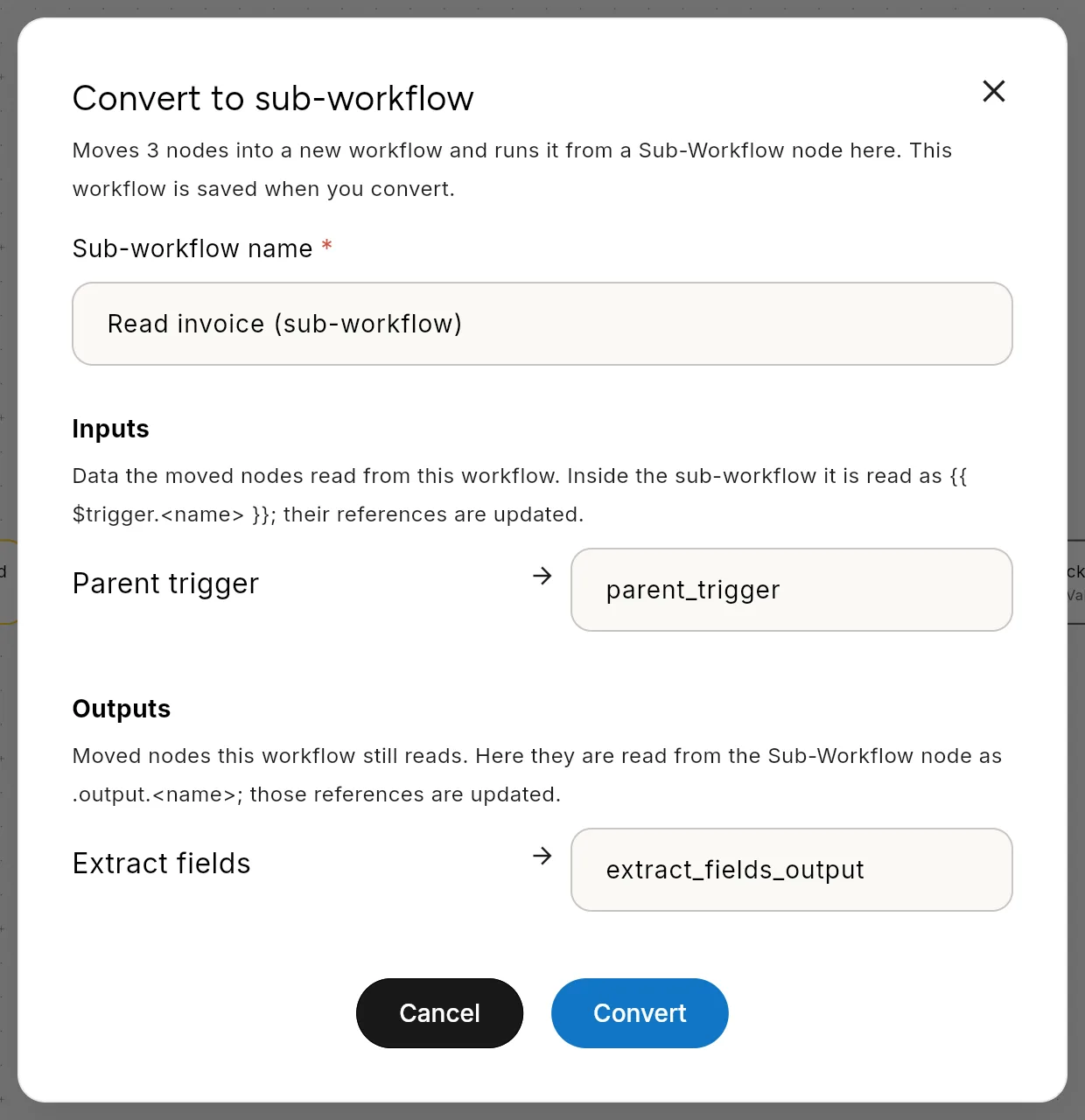
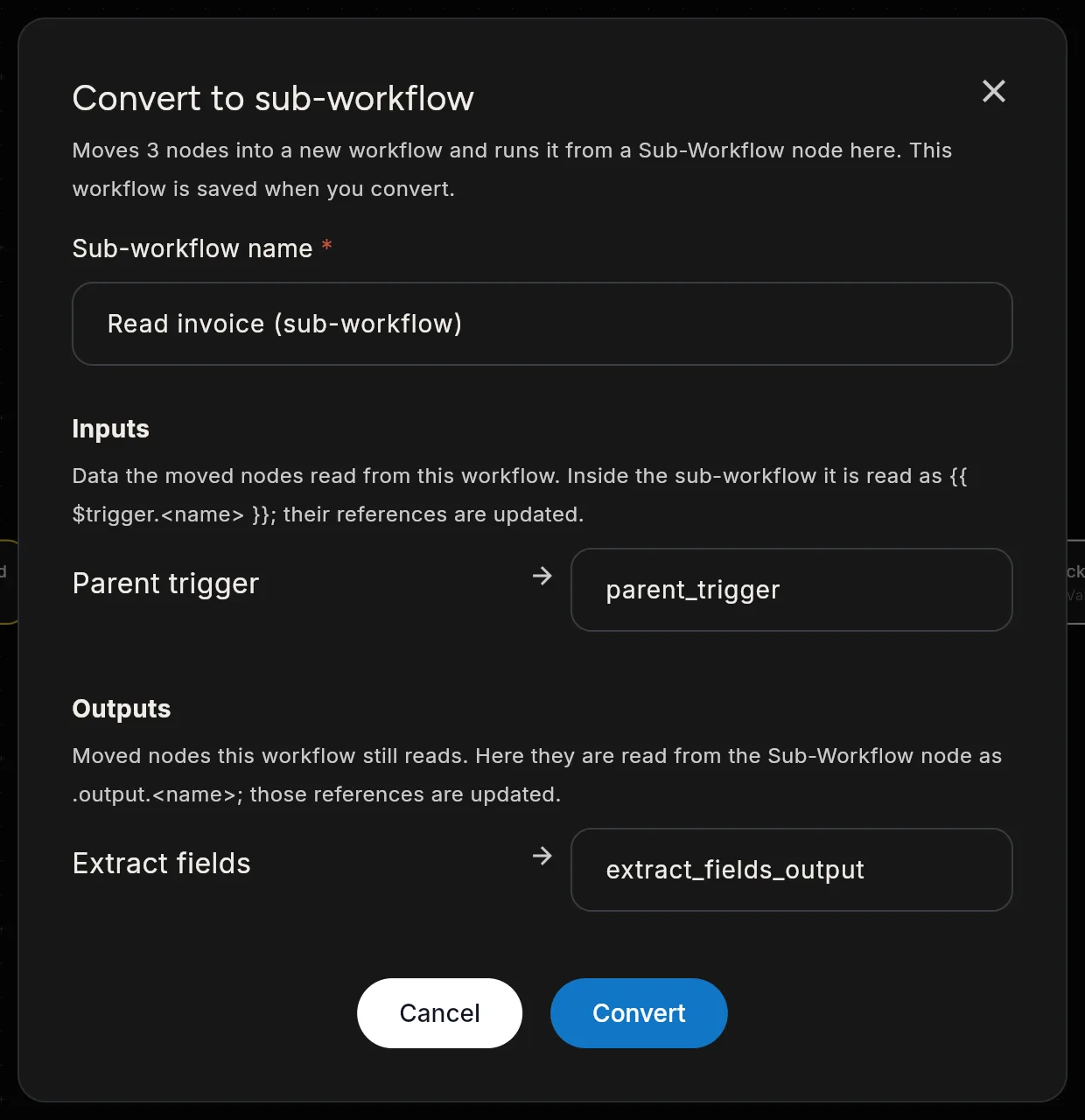
- In the dialog, check the Sub-workflow name. Flero suggests one from the first node.
- Review Inputs and Outputs (see below). Rename any key you like.
- Click Convert.
Flero creates the new workflow, replaces the selection with a Sub-Workflow node that calls it, saves the current workflow, and opens the new node's panel. A toast confirms how many nodes moved.
Inputs and outputs
Flero works out how data crosses the new boundary and updates the expressions for you.
| Section | What it lists | How it is read afterwards |
|---|---|---|
| Inputs | Data the moved nodes read from this workflow, such as the trigger or a node that stays behind. | Inside the sub-workflow, as {{ $trigger.<name> }}. |
| Outputs | Moved nodes that the rest of this workflow still reads. | In this workflow, from the Sub-Workflow node as .output.<name>. |
Keys use letters, digits and _ only.
When a selection can't be converted
A sub-workflow has to behave exactly like the nodes it replaces. If it couldn't, Flero shows Can't convert this selection with the reasons. Common ones:
- Triggers can't move. The new workflow gets its own start node. Deselect the trigger.
- An AI Agent moves with its tools and guards. Select the agent and everything attached to it, or none of them.
- One way out. A sub-workflow returns one result, so everything that leaves the selection must leave through one node.
- Error paths stay together. If a node's error output leads outside the selection, include its error handling or leave the node out.
Sticky notes in the selection stay in this workflow.
Adjust the selection and try again.
Tips & gotchas
- The current workflow is saved when you convert. Review the dialog before you click Convert.
- The new workflow is a normal workflow. Find it on the Workflows page, rename it, or call it from other workflows with a Sub-Workflow node.
- Test after converting. Run the parent workflow once and check the Sub-Workflow node's output.
- The AI builder can do this too. Ask it to "move these steps into a sub-workflow". See AI builder.
Related
Found something out of date? This page lives in the Flero docs content set.