Files & documents
Nodes that read, create and convert files: spreadsheets, Word and PowerPoint documents, PDFs, images and scans. In the palette they sit under Data Storage.
How files move through a workflow
- Start from files you already have. The Files node brings files from your workspace library into a run. You can upload files in its panel, several at a time.
- Nodes pass file references. Nodes that make a file (Spreadsheet, Word Document, PowerPoint, PDF Operations, CSV Batch, File Creation, Barcode & QR, SFTP downloads) store it and put a reference to it in their output, usually as
file. Nodes that read a file take that reference infileData. - Inline only as a fallback. If a file can't be stored, the node puts the content in its output as base64 instead.
All nodes on this page have one input and one output port unless the entry says otherwise.
Files
What: Brings files from the workspace library into the run as file references.
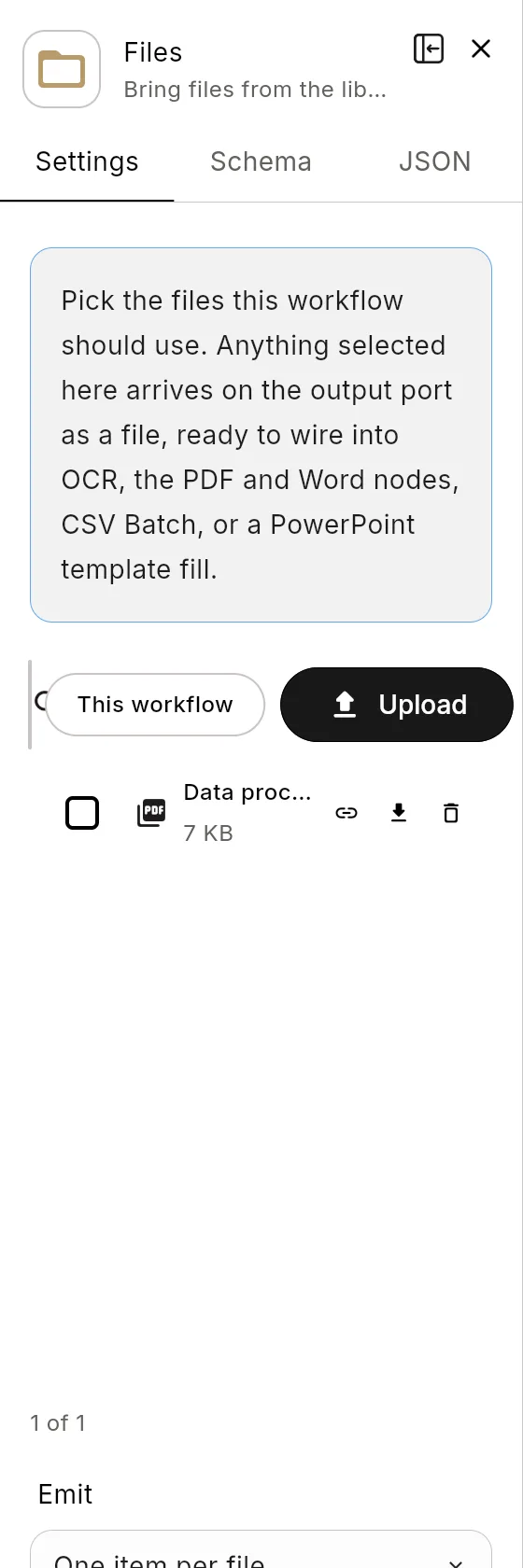
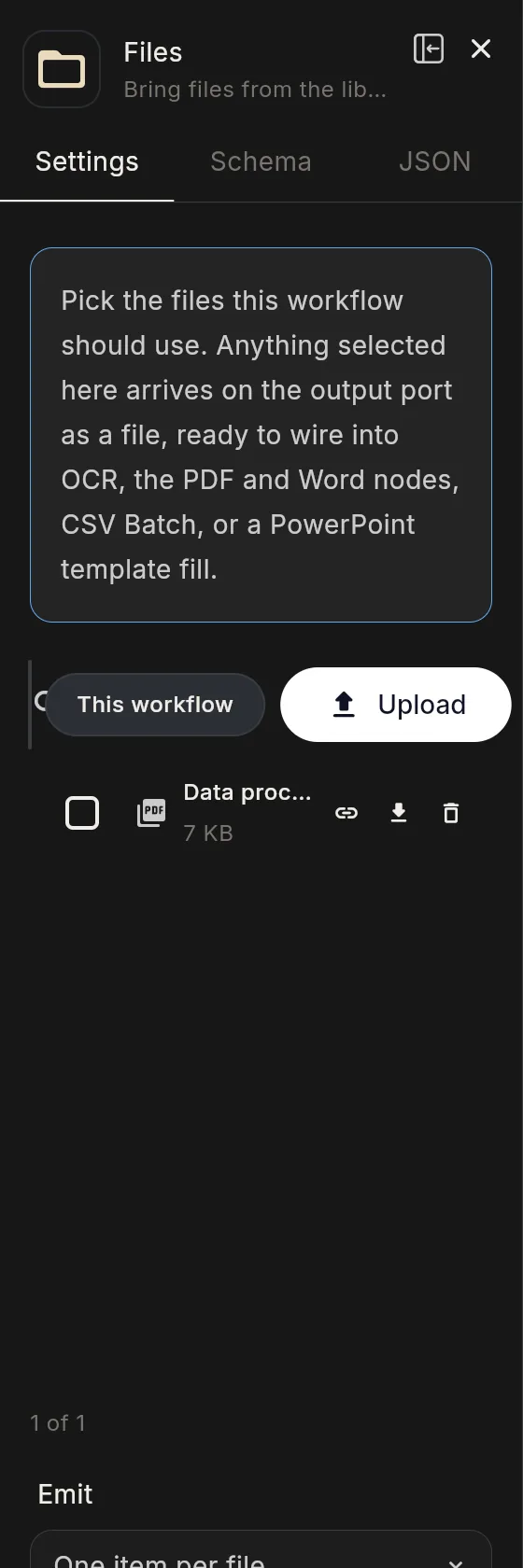
Configuration: files (required), emit (perFile default: one item per file; or single: one item for all), verify (default off).
File Creation
What: Turns workflow data into a file: PDF, DOCX, XLSX, CSV, TXT or Base64.
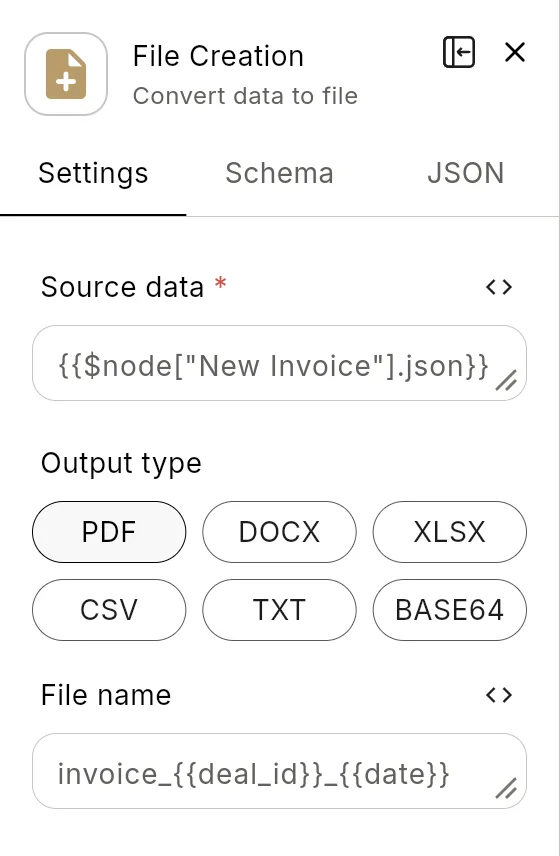
Ports: in input; out output, error.
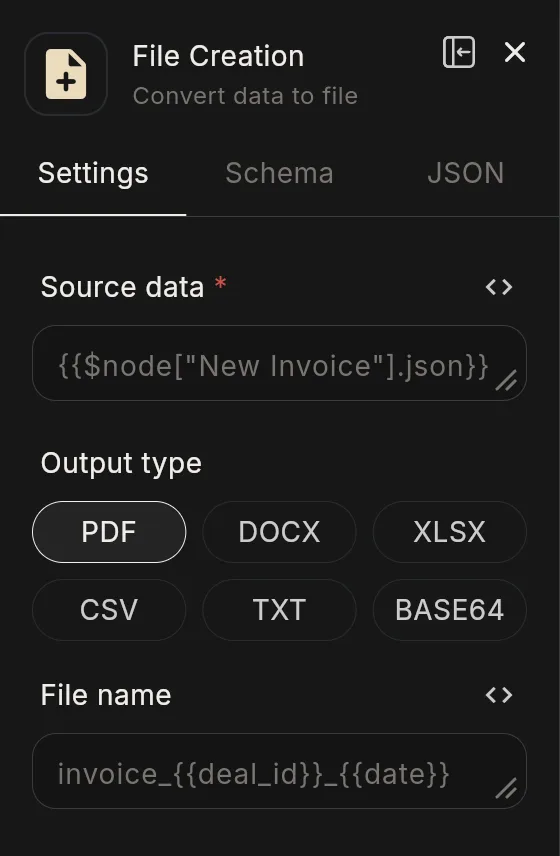
Configuration: source (required: the data to write), outputType (pdf default), fileName, sheetName, encoding (utf8 default, ascii, latin1).
File Operations
What: File and storage operations: read, write, append, delete, copy, move, list, compress, decompress, convert, upload, download and more.
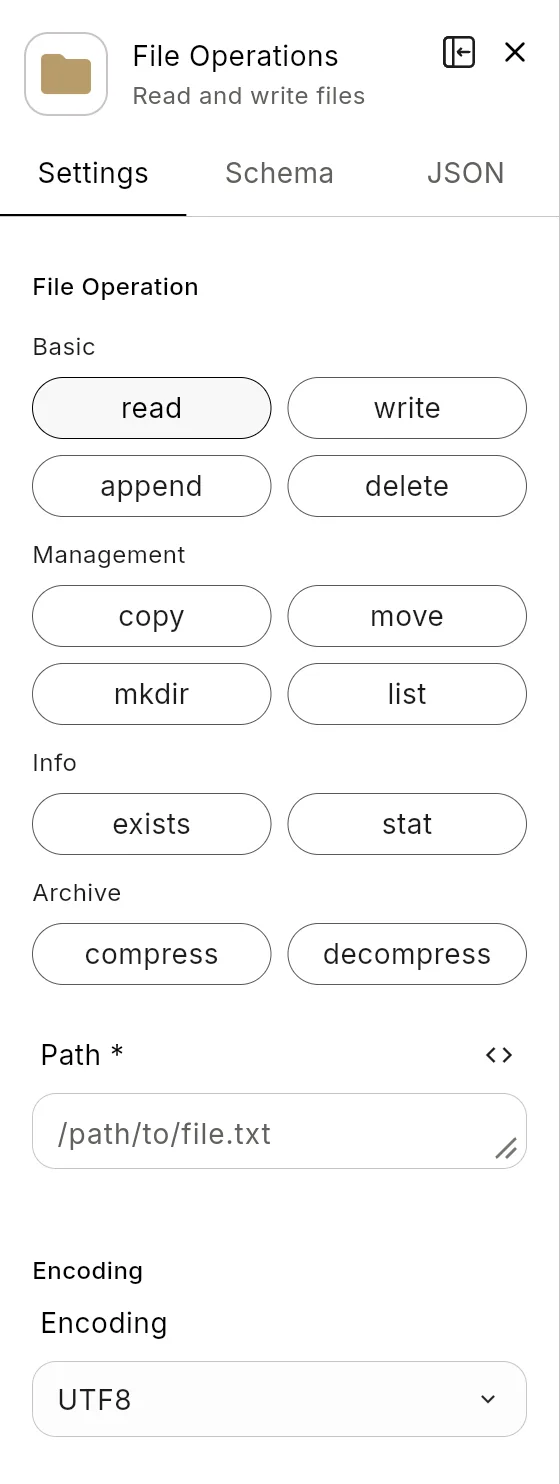
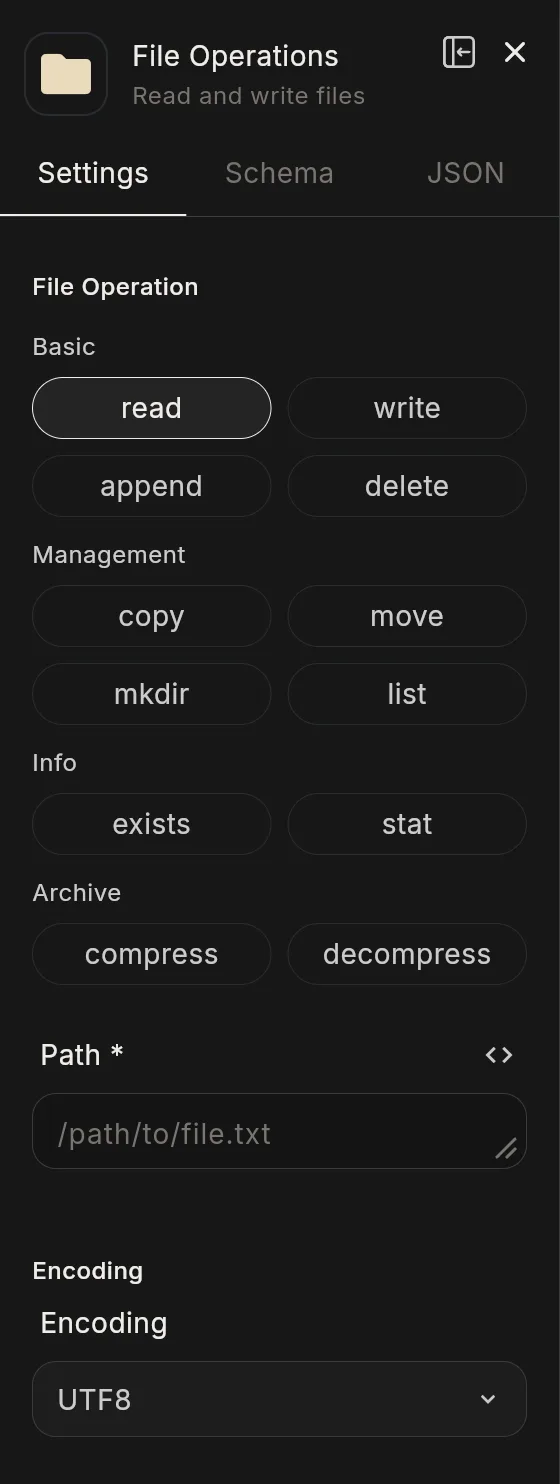
Ports: in input; out output, error.
Configuration: operation (required), path (required), content, encoding (utf8 default), destination.
CSV Batch
What: Reads and writes CSV with proper quoting, a page at a time.
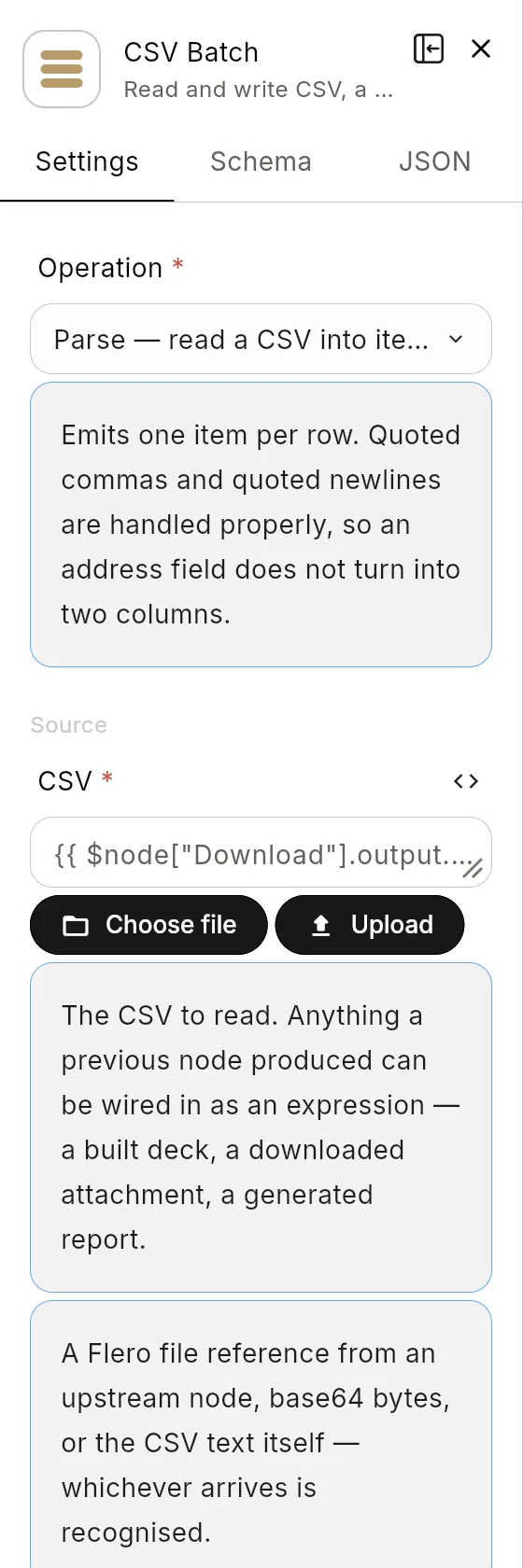
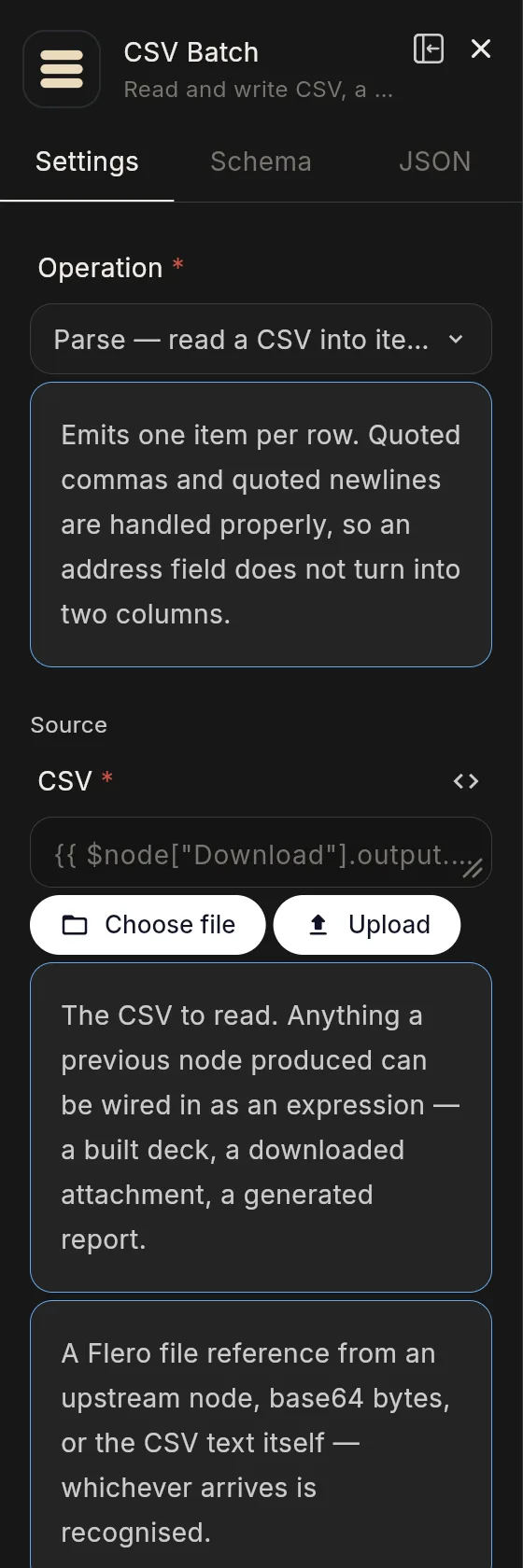
Configuration: operation (parse default, write, count), fileData, hasHeader (default on), delimiter (default ,), encoding (utf-8 default, or latin1), offset and limit (for paging; limit: 0 reads everything), columns, parseNumbers (default off), trimValues (default on), fileName.
Use when: A CSV is too large to handle in one go. Read 1000 rows at a time with offset and limit inside a Loop.
Spreadsheet
What: Reads and writes Excel .xlsx workbooks.
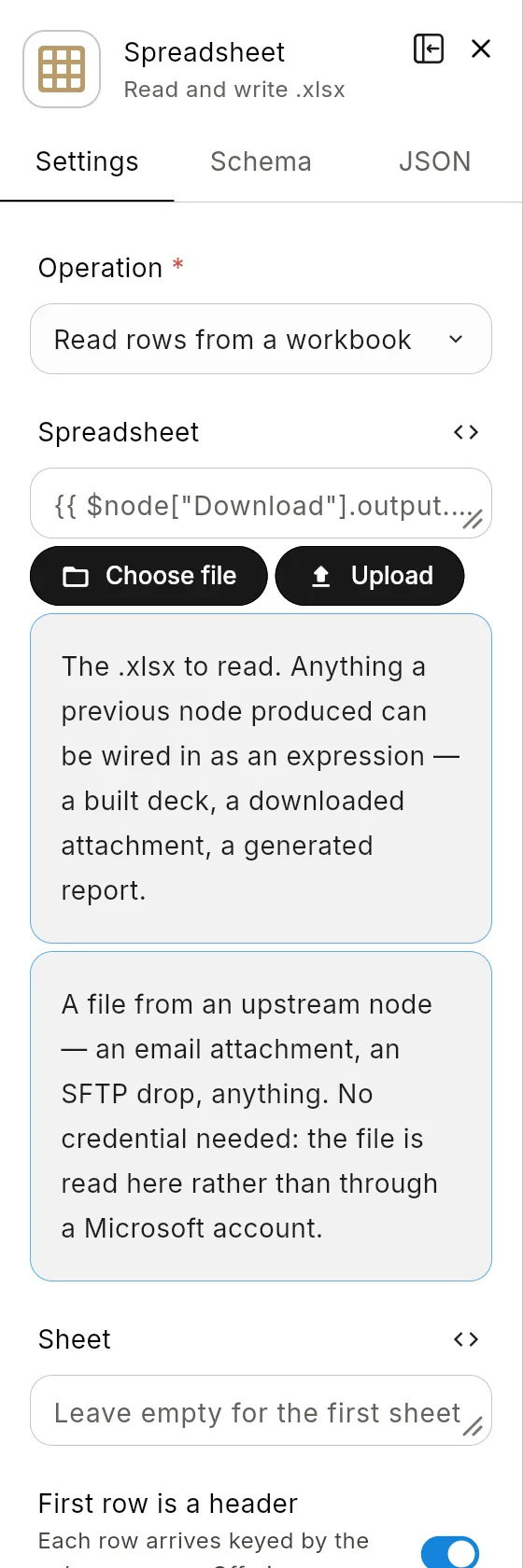
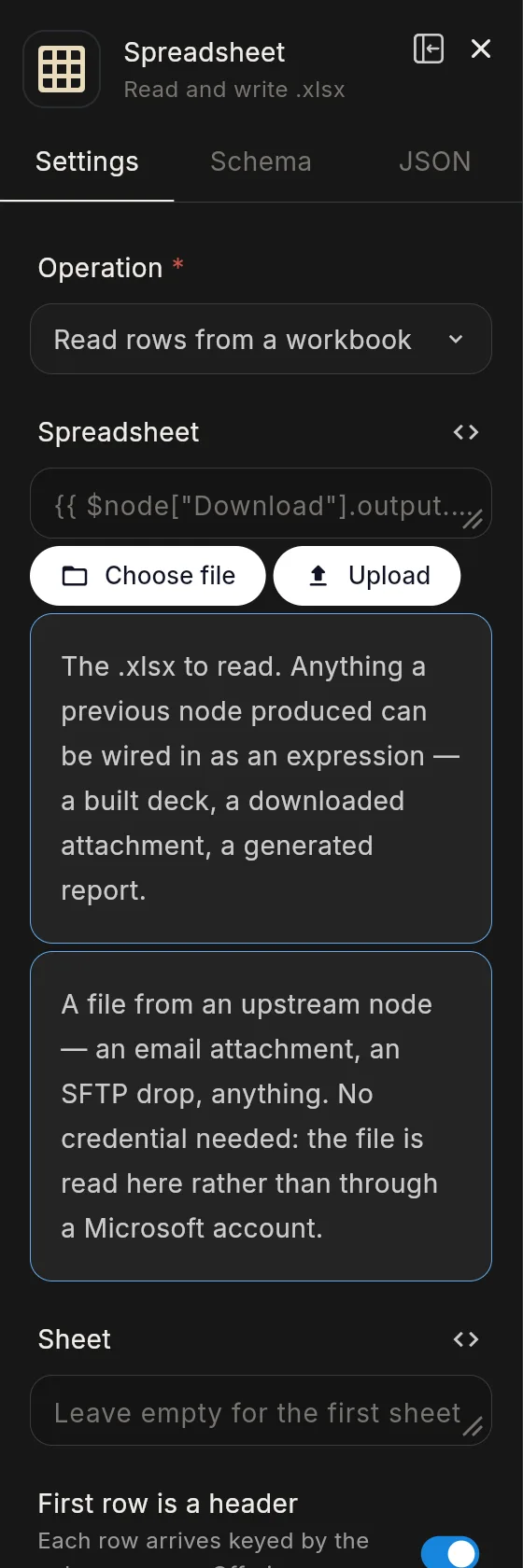
Configuration: operation (read default, write, listSheets), fileData, sheet, headerRow (default on), maxRows (0 = all), sheetName (default Sheet1), columns, writeHeader (default on), fileName.
Word Document
What: Builds .docx documents from blocks, or reads them.
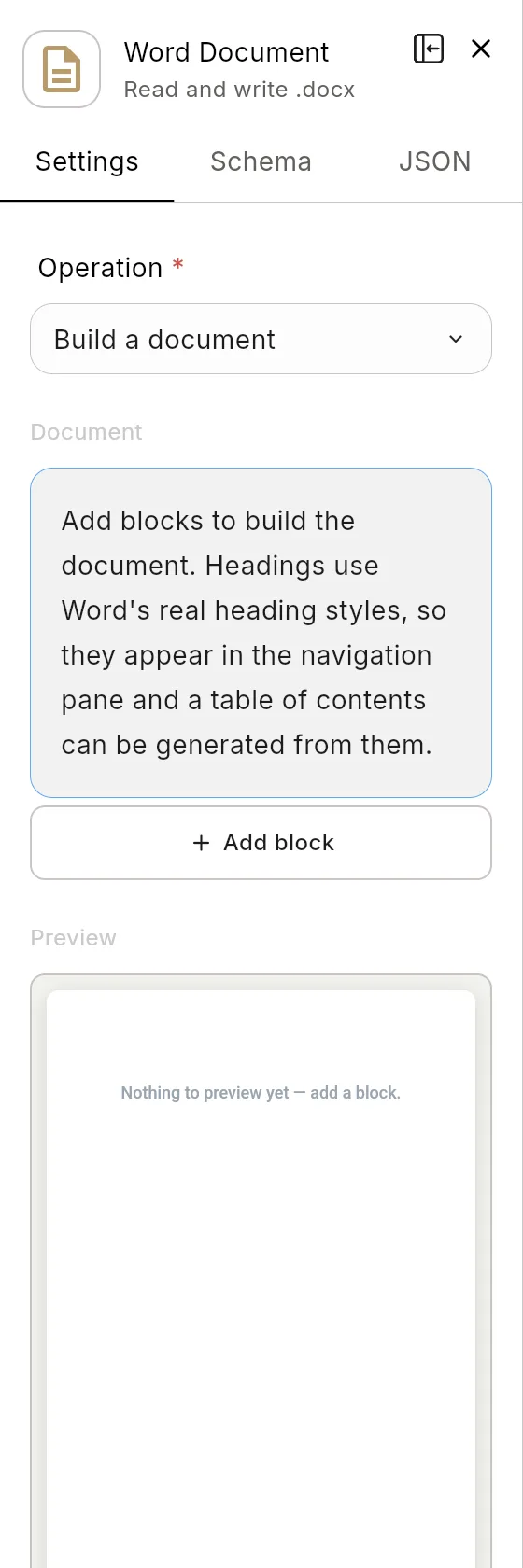
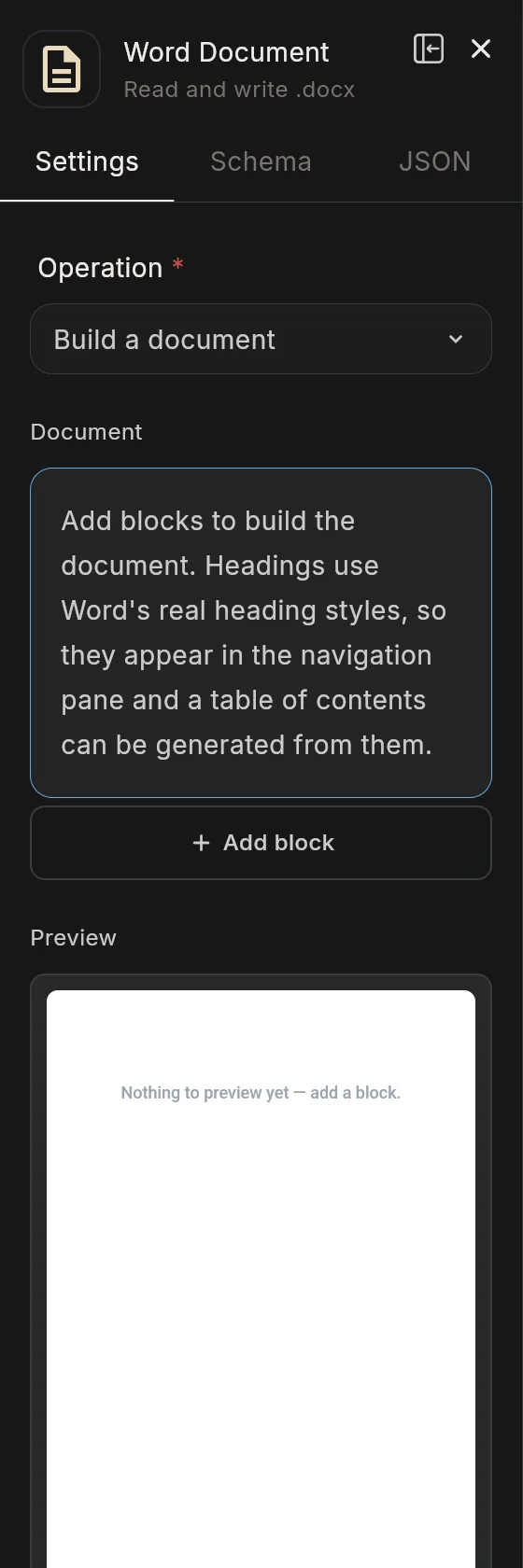
Configuration: operation (build default, read, extractText), blocks, fileData, title, author, fileName.
PowerPoint
What: Builds, reads and fills .pptx decks, and updates their charts.
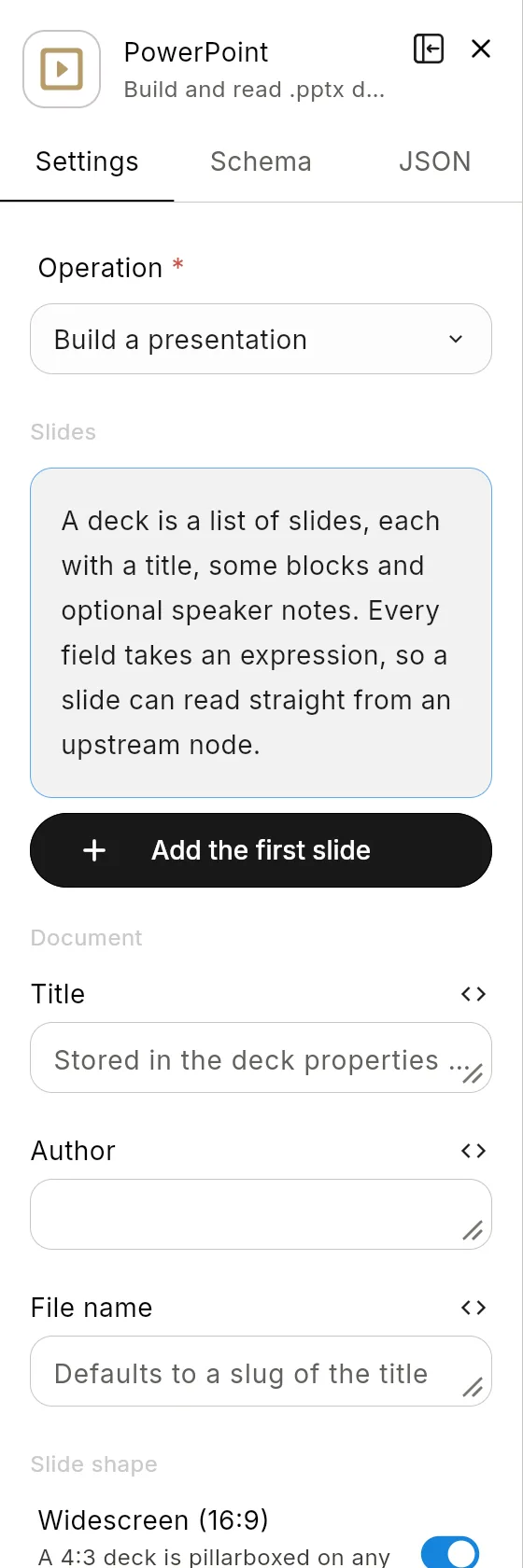
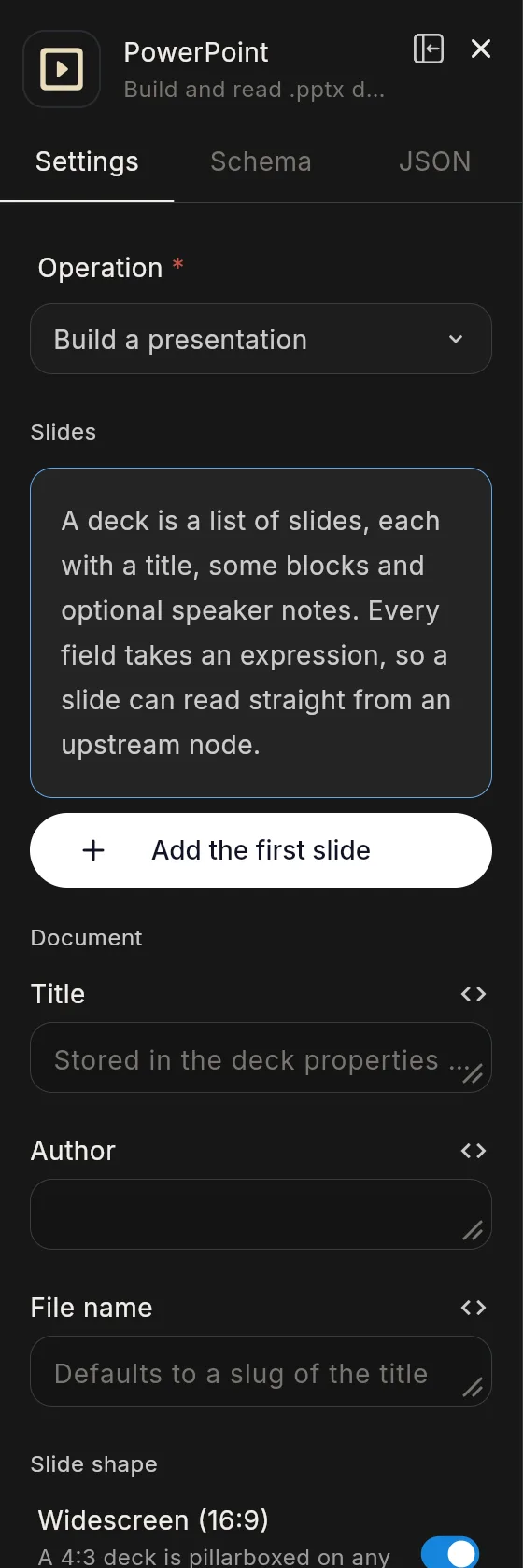
Configuration: operation (build default, read, extractText, fill, updateCharts), slides, fileData, title, author, fileName, widescreen (default on), includeNotes (default on), data, failOnMissing (default off), charts.
Use when: Producing a weekly report deck from a template: fill replaces placeholders with data, and updateCharts refreshes chart values.
PDF Operations
What: Builds, generates, parses, merges, splits, extracts, encrypts and decrypts PDFs.
Configuration:
| Field | Notes |
|---|---|
operation |
Required: build, generate, parse, merge, split, extract, metadata, encrypt or decrypt |
blocks |
Content blocks, for build |
content, contentType |
Content for generate: text (default), html or markdown |
pageSize |
a4 (default), letter, legal, a3, a5 |
headerText, footerText, pageNumbers |
Page furniture |
pdfFiles |
Files to merge |
password |
For encrypt and decrypt |
fileName |
Name of the output file |
For scanned PDFs with no text layer, use OCR.
Image Convert
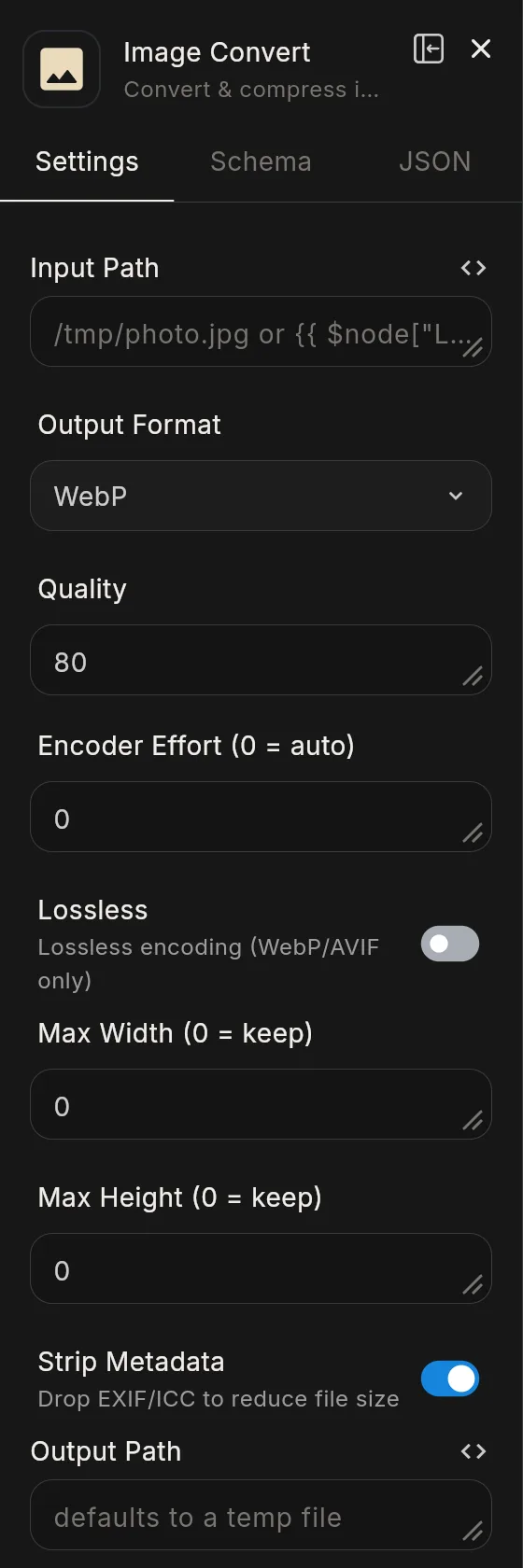
What: Converts and compresses images to WebP, AVIF, PNG or JPEG, and can resize them.
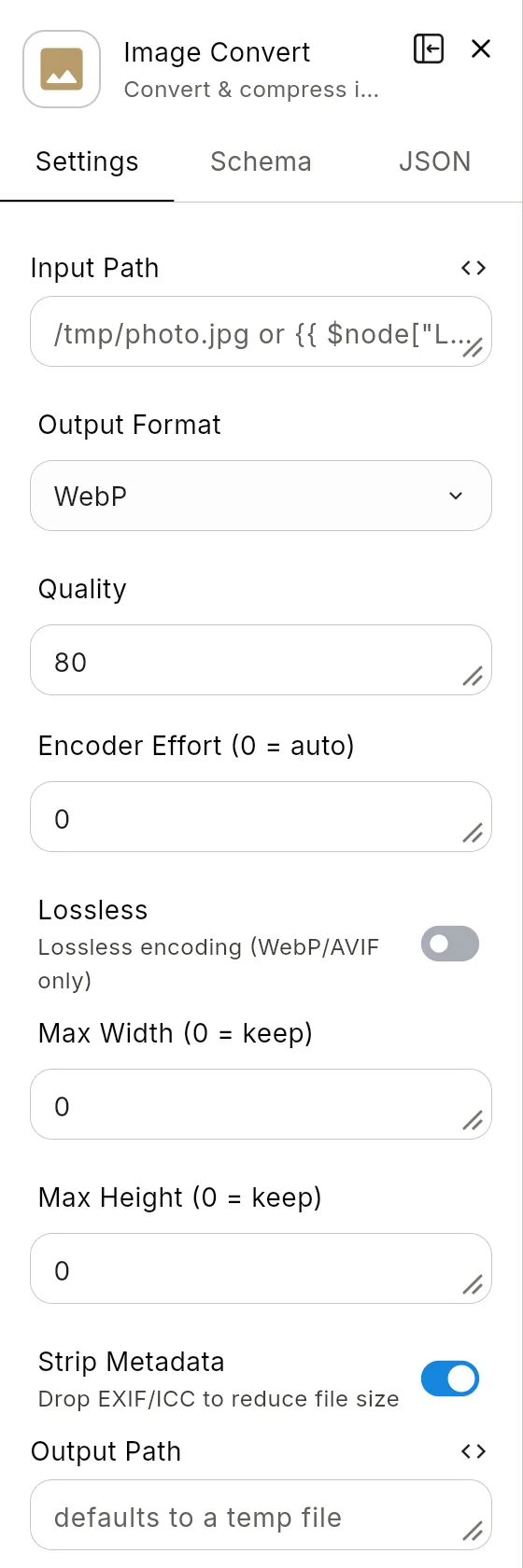
Ports: in input; out output, error.
Configuration: inputPath, outputFormat (webp default), quality (default 80), effort, lossless (default off), resizeWidth, resizeHeight, stripMetadata (default on), outputPath.
OCR
What: Reads text from scans and photographs.
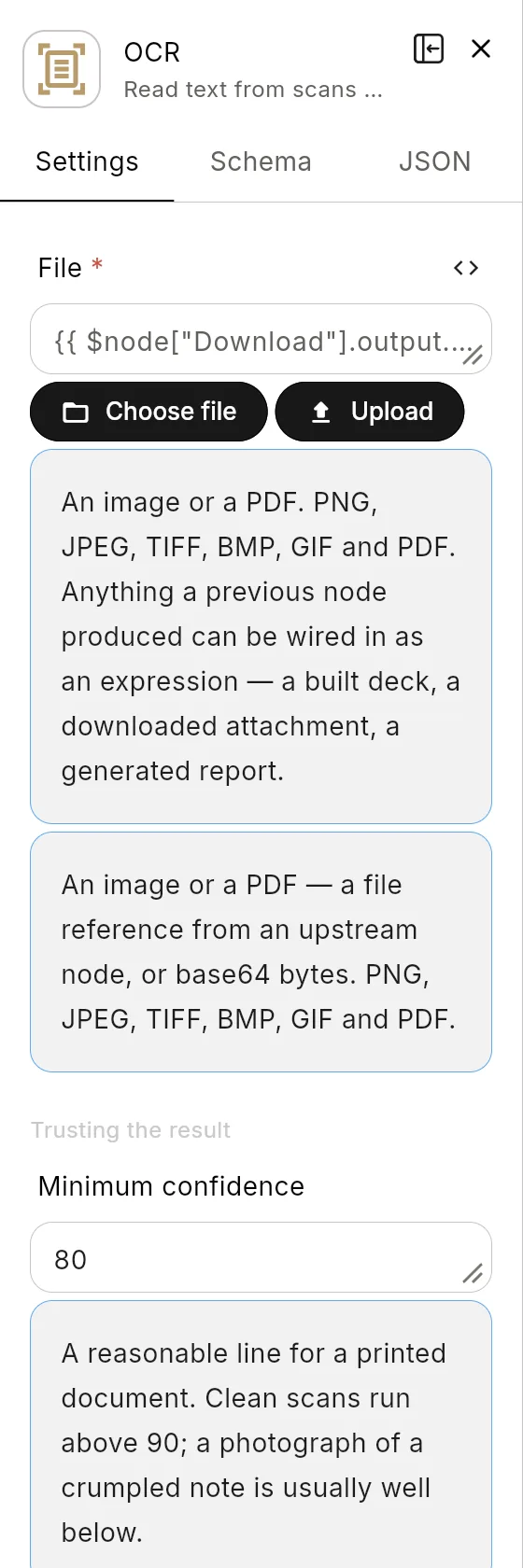
Configuration: fileData (required), mode, for PDFs (auto default: use the PDF's own text when it has any and read the image only when it has none; ocr: always read the image; text: never read the image), languages (default eng), minimumConfidence (default 80), perPage (default off), maxPages (default 20), dpi (default 300), pageSegmentation (default 3).
Tips & gotchas
- Chain by file reference. Pass a file from one node to the next through
fileData. Open the upstream node's output to find the field that holds the file reference, and use the Data Mapper to insert it. - Large files: page through big CSVs with CSV Batch, and cap PDFs with
maxPagesin OCR.
Related
- Data transformation
- HTTP & API, for downloading files and SFTP
- RAG nodes, for searching document text
Found something out of date? This page lives in the Flero docs content set.