Folders
Folders group the workflows in a workspace. Use them to separate teams, clients or stages of work.
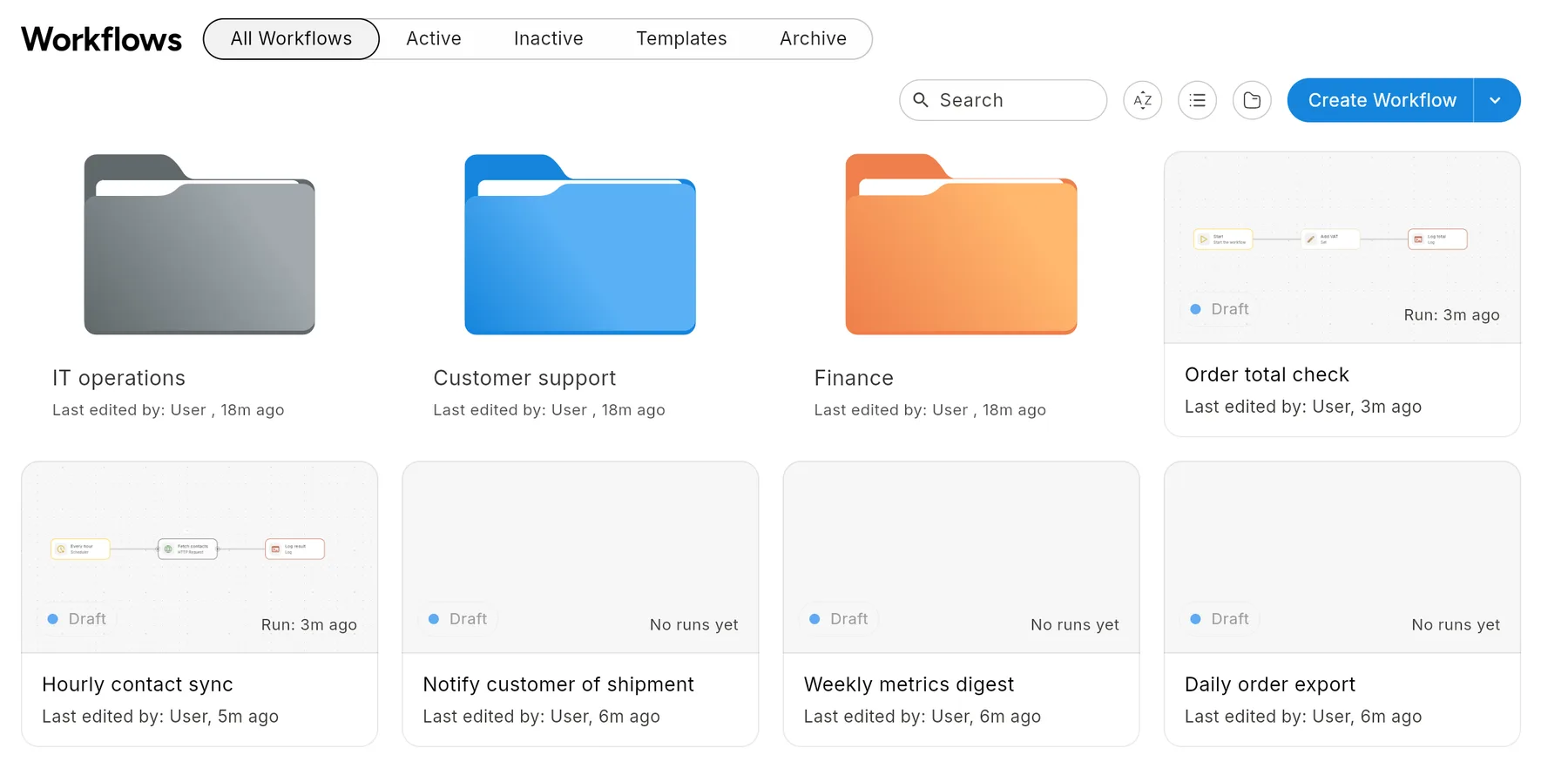
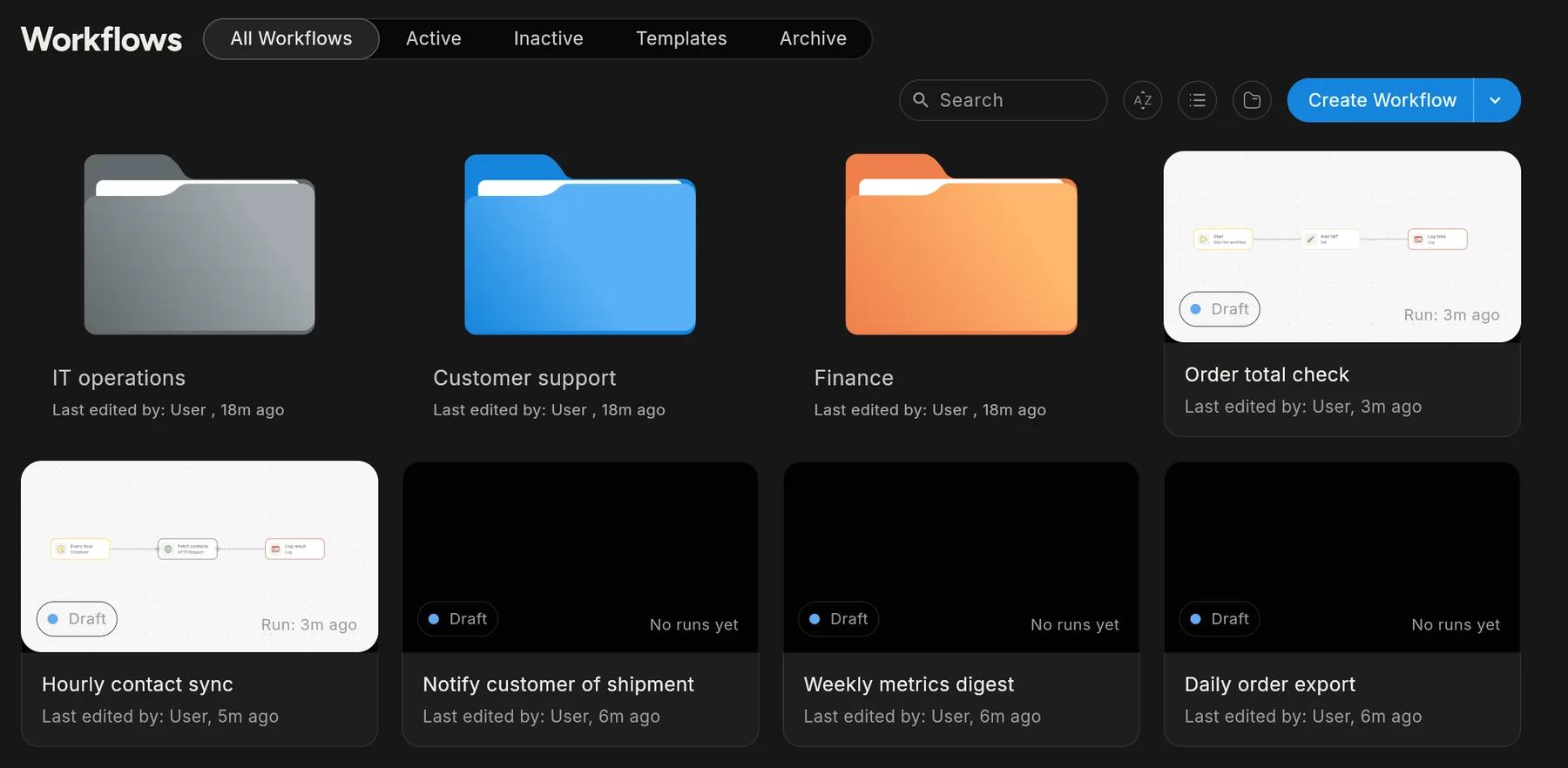
How folders work
- Folders belong to a workspace. Each workspace has its own set.
- Folders are one level deep. There are no subfolders.
- A workflow is in one folder at most, or at the top level.
- Folders appear in the All Workflows, Active and Inactive tabs. The Archive tab is a flat list.
Create a folder
- On the Workflows page, click the New folder button next to the view toggle.
- Type a name in the card that appears at the start of the grid.
- Press Enter to save, or Esc to cancel.
The New folder button is hidden while you are inside a folder, because folders cannot be nested.
Move a workflow into a folder
Two ways:
- Drag a workflow card onto a folder. This works from the top-level view.
- Open the card's ⋯ menu, choose Move to folder, then pick a folder. To take a workflow out of a folder, choose Move to root.
Open a folder
Click a folder to see only the workflows inside it. The header shows the folder name and a back arrow to return to all workflows. Search, sort and the tabs still apply inside a folder.
Rename, colour or delete a folder
Hover a folder and open its ⋯ menu.
| Action | What happens |
|---|---|
| Rename | The name becomes editable in place. Press Enter to save. |
| Color | Pick a colour for the folder card. |
| Delete | Asks for confirmation. Workflows inside the folder move back to the top level. They are not deleted. Deleting a folder cannot be undone. |
Related
Found something out of date? This page lives in the Flero docs content set.