Managing workflows
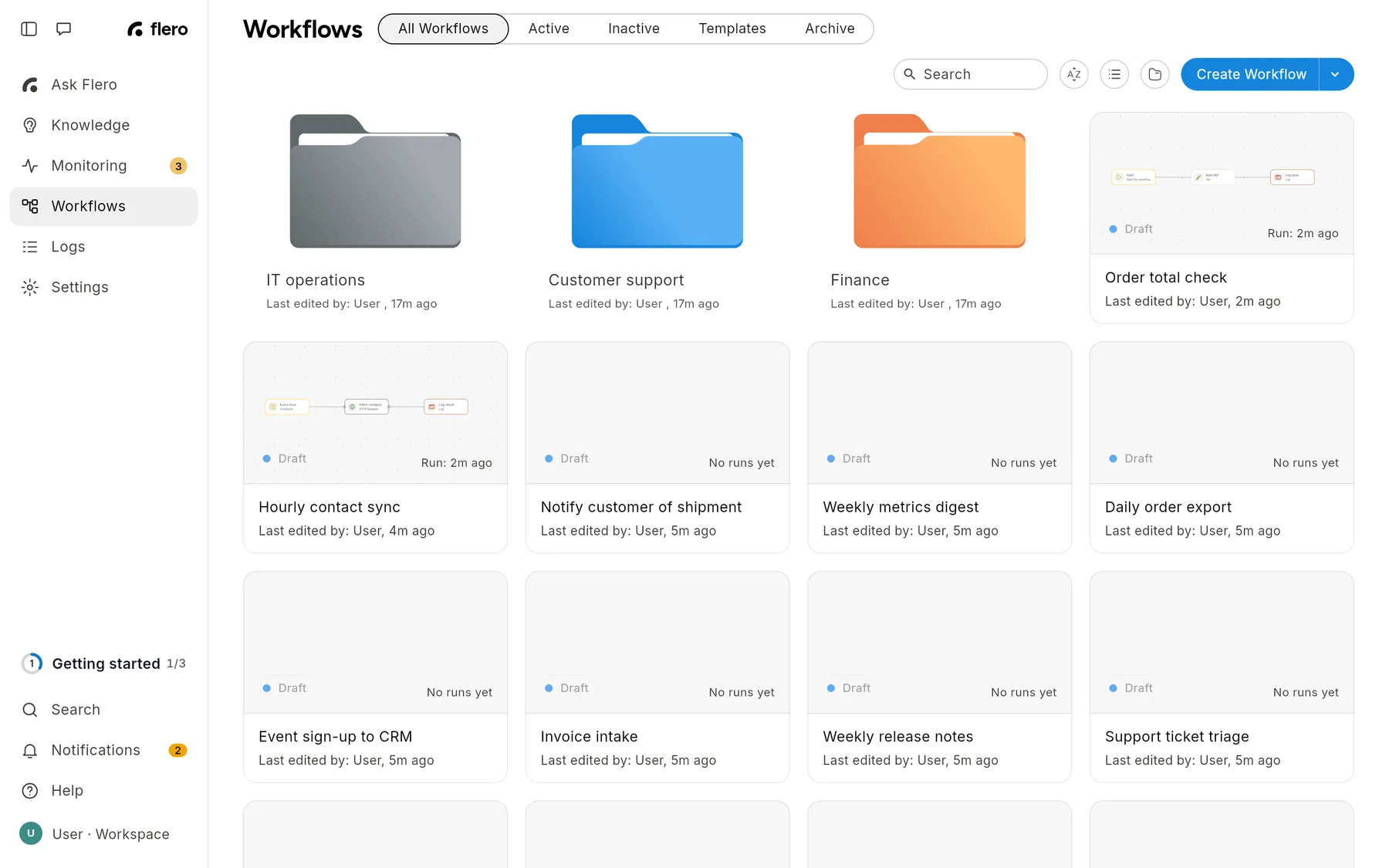
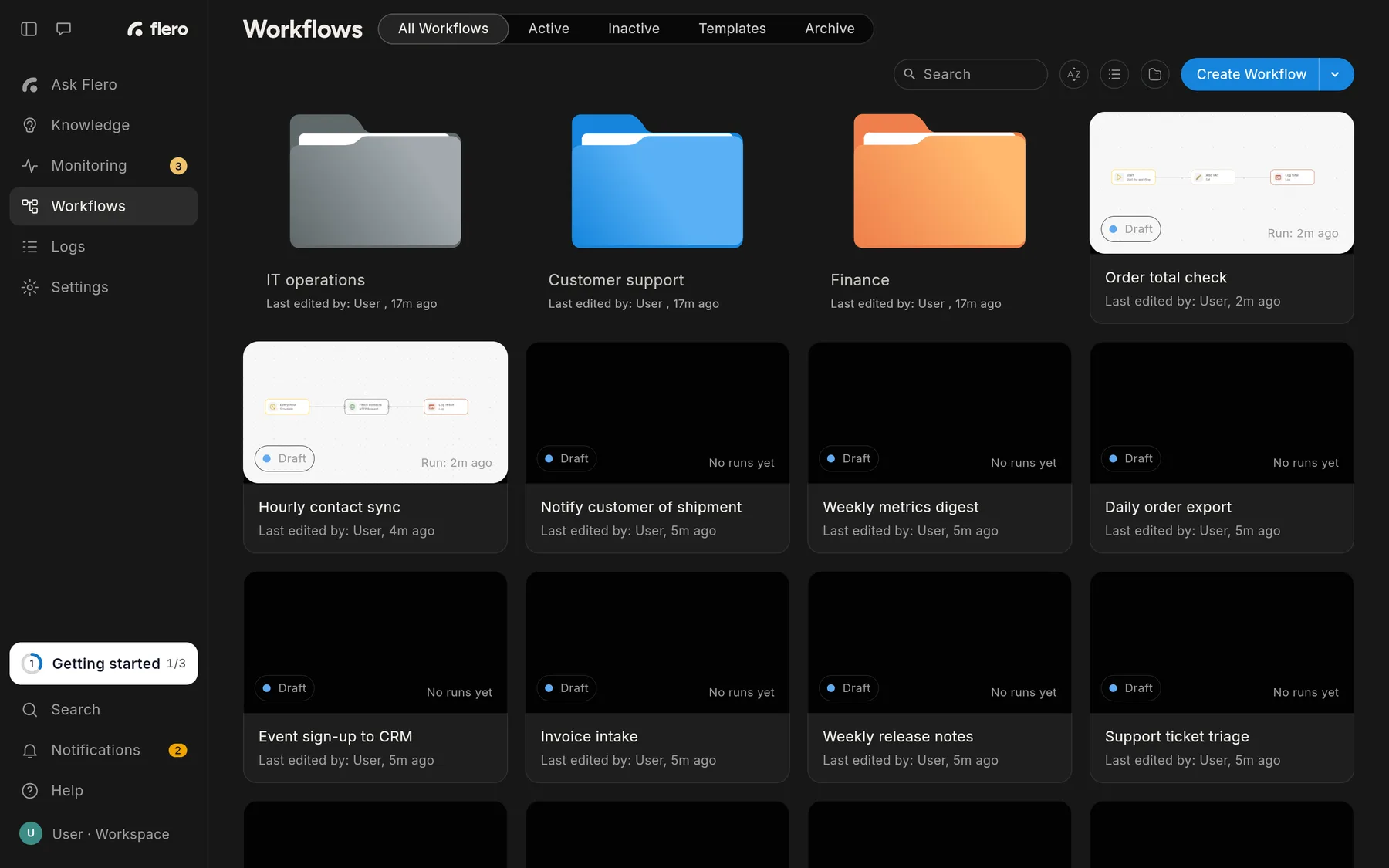
The Workflows page is where you find, organise and look after every workflow in your workspace. Open it from Workflows in the left sidebar.
What this section covers
| Page | Read it when you want to |
|---|---|
| Folders | Group workflows, rename or colour a folder, move workflows between folders |
| Archive and restore | Remove a workflow, bring one back, or delete one for good |
| Import and export | Move a workflow between workspaces or instances, or bring one in from n8n |
| Versions and activation | Understand which version of a workflow runs, and switch it |
The Workflows page
The page shows the workflows in your current workspace. Switch workspace and the list changes with it.
Tabs
| Tab | Shows |
|---|---|
| All Workflows | Every workflow that is not archived |
| Active | Workflows with an active version. Their triggers are live. |
| Inactive | Everything that is not active: drafts and deactivated workflows |
| Templates | A placeholder today. It shows "Templates coming soon". |
| Archive | Archived workflows, kept for 30 days. See Archive and restore. |
Search, sort and view
- Search matches the workflow name, description and tags.
- Sort by offers Last Updated, Name and Date Created.
- The view toggle switches between a grid of cards and a list.
Workflow cards
Each card shows the workflow name, its status, when it last ran, and who last edited it and when. Click a card to open it in the editor.
The card menu
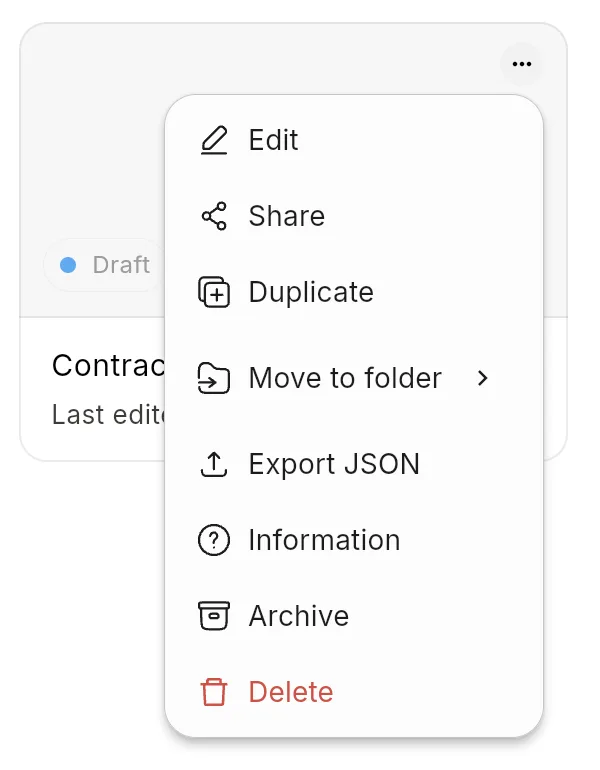
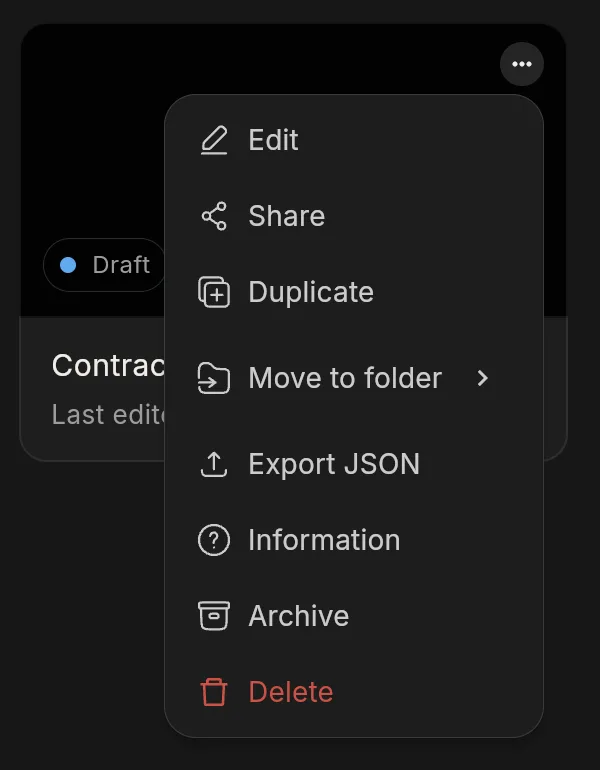
Open the ⋯ menu on a card for these actions:
| Action | What it does |
|---|---|
| Edit | Opens the workflow in the editor |
| Share | Copies a link to the workflow. Only people with access to the workspace can open it. |
| Duplicate | Creates a copy in the same workspace |
| Move to folder | Moves the workflow into a folder, or back to the top level. See Folders. |
| Export JSON | Downloads the workflow as a JSON file. See Import and export. |
| Information | Shows who created the workflow, when it was created and last edited, its last run, its status and its workflow ID. Copy details puts all of it on your clipboard. |
| Archive / Delete | Both move the workflow to the Archive. See Archive and restore. |
In the Archive tab the menu changes to Restore and Delete Permanently.
Creating a workflow
Click Create Workflow. The arrow beside it opens two options:
- Create New Workflow opens an empty canvas. See Your first workflow.
- Import creates workflows from JSON files. See Import and export.
Tips
- The workflow ID is in Information. You need it to run a workflow from the Flero API. It is also the last part of the editor URL.
- Status follows activation. A workflow shows as Active once one of its versions is active. See Versions and activation.
Related
Found something out of date? This page lives in the Flero docs content set.