Replacing a node
Swap a node for a different type without rebuilding its connections. The replacement keeps the node's place, name and wiring. When you swap one connector for another, Flero also carries the settings across where it can.
Replace a node
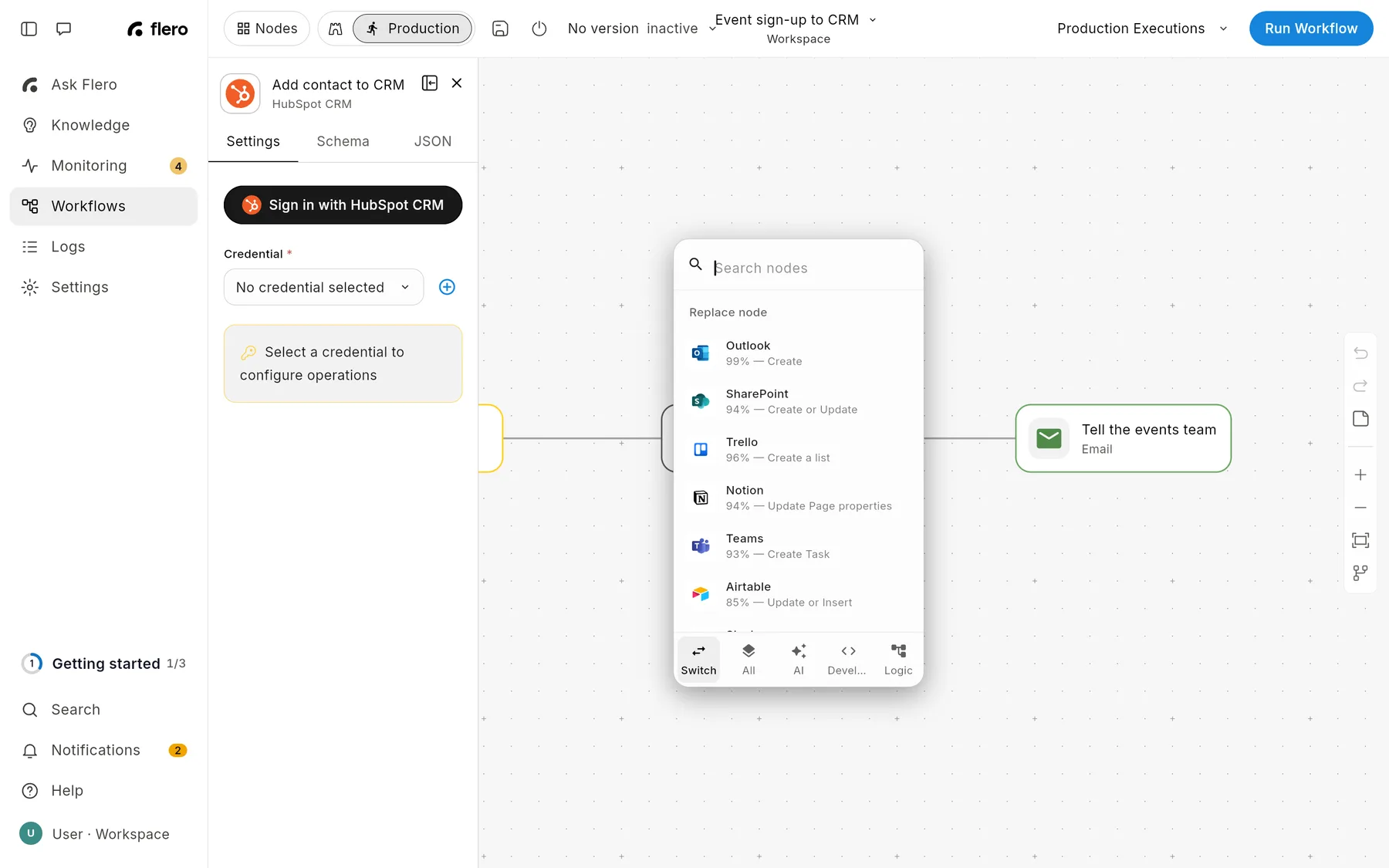
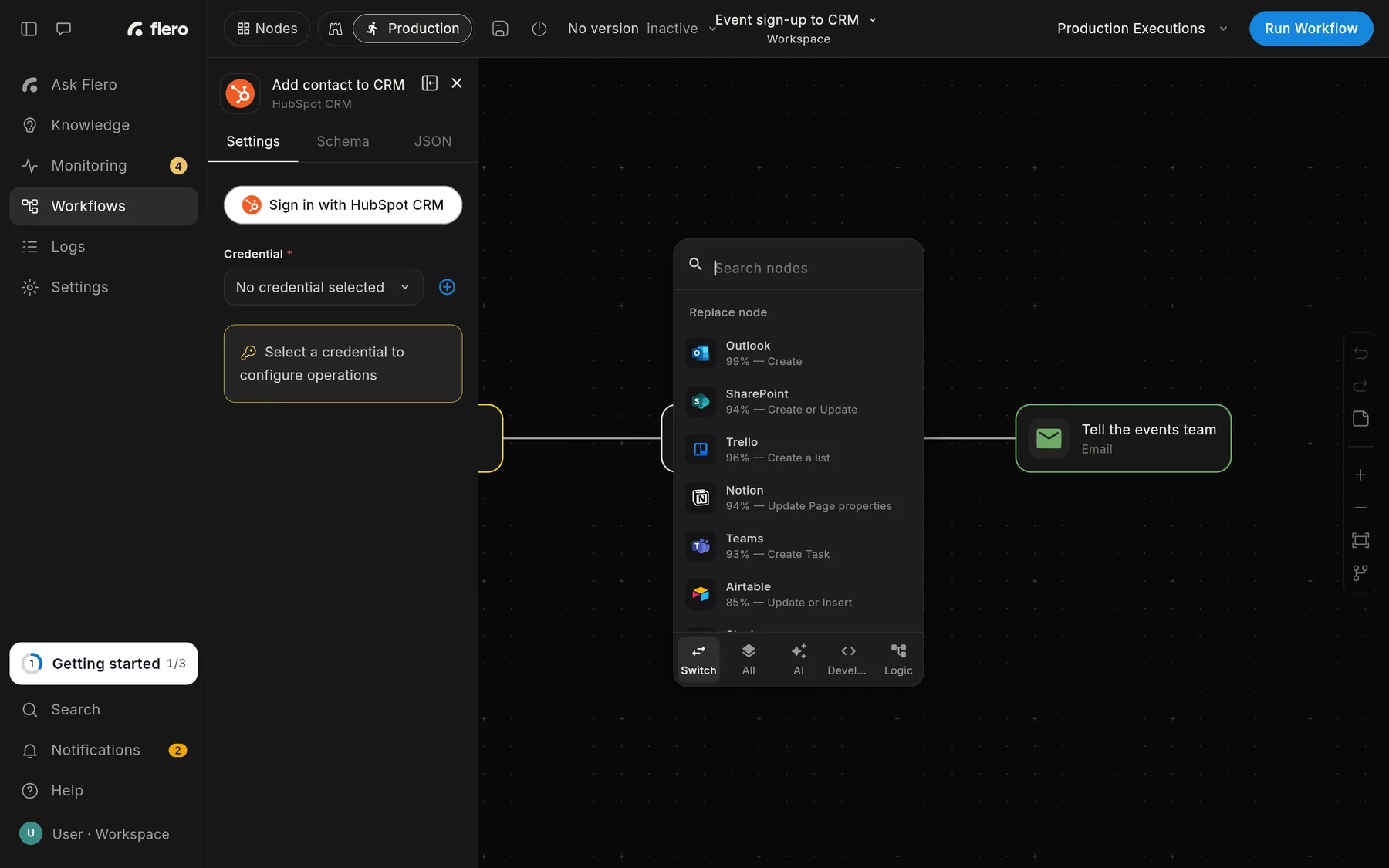
- Hover over the node and click Change in its toolbar.
- The Replace node picker opens. Search for the node type you want, or browse the tabs.
- Click the new type.
The node changes type in place. Its id, name and connections stay the same. Settings that don't apply to the new type are dropped, so review the node's panel afterwards.
Triggers can only be replaced with other triggers.
Switch one connector for another
When the node is a connector with an operation chosen (for example, "Create contact" in Salesforce), the picker has a Switch tab. It ranks other connectors by how well they match that operation, shown as a percentage, for example 92%, HubSpot.
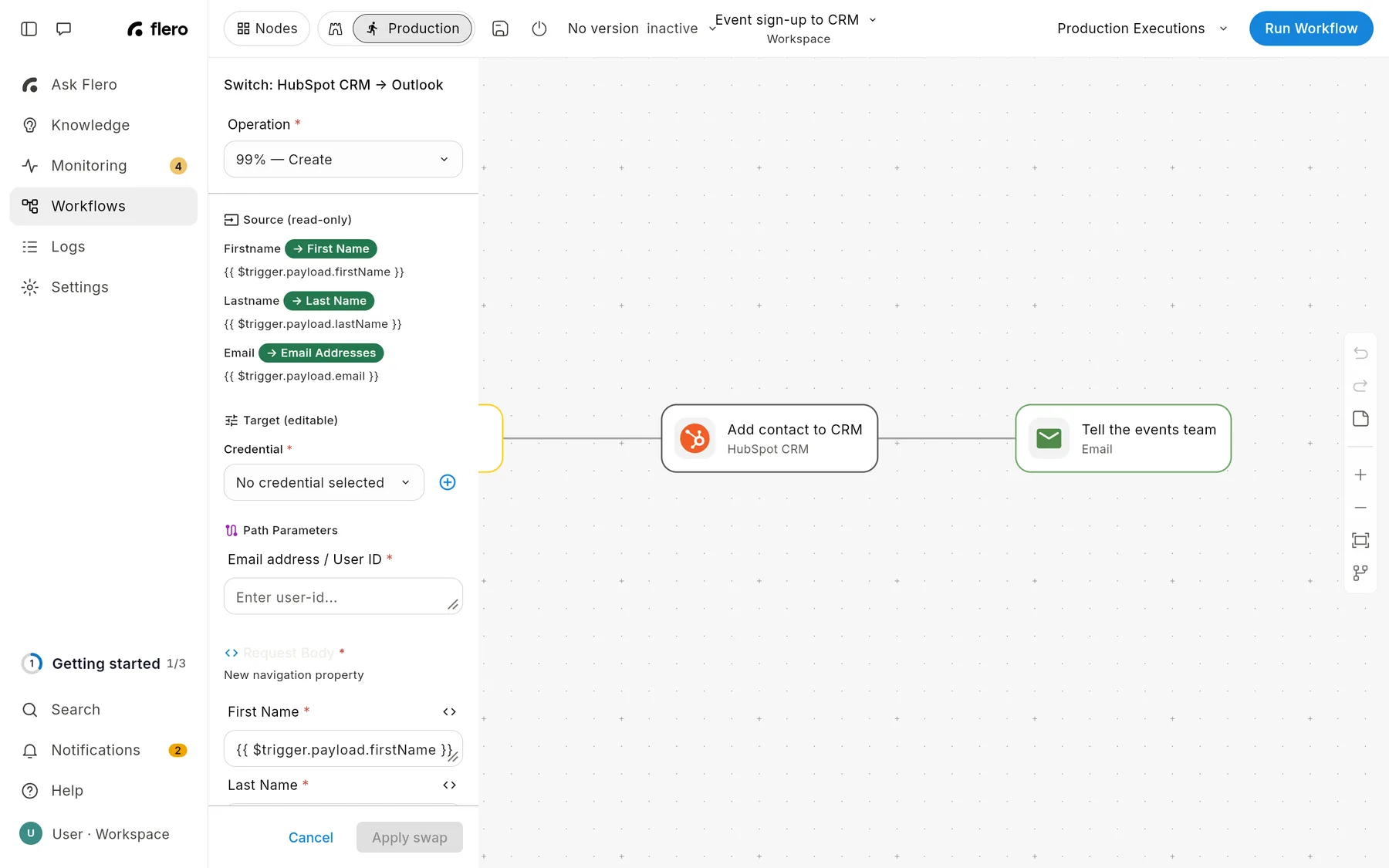
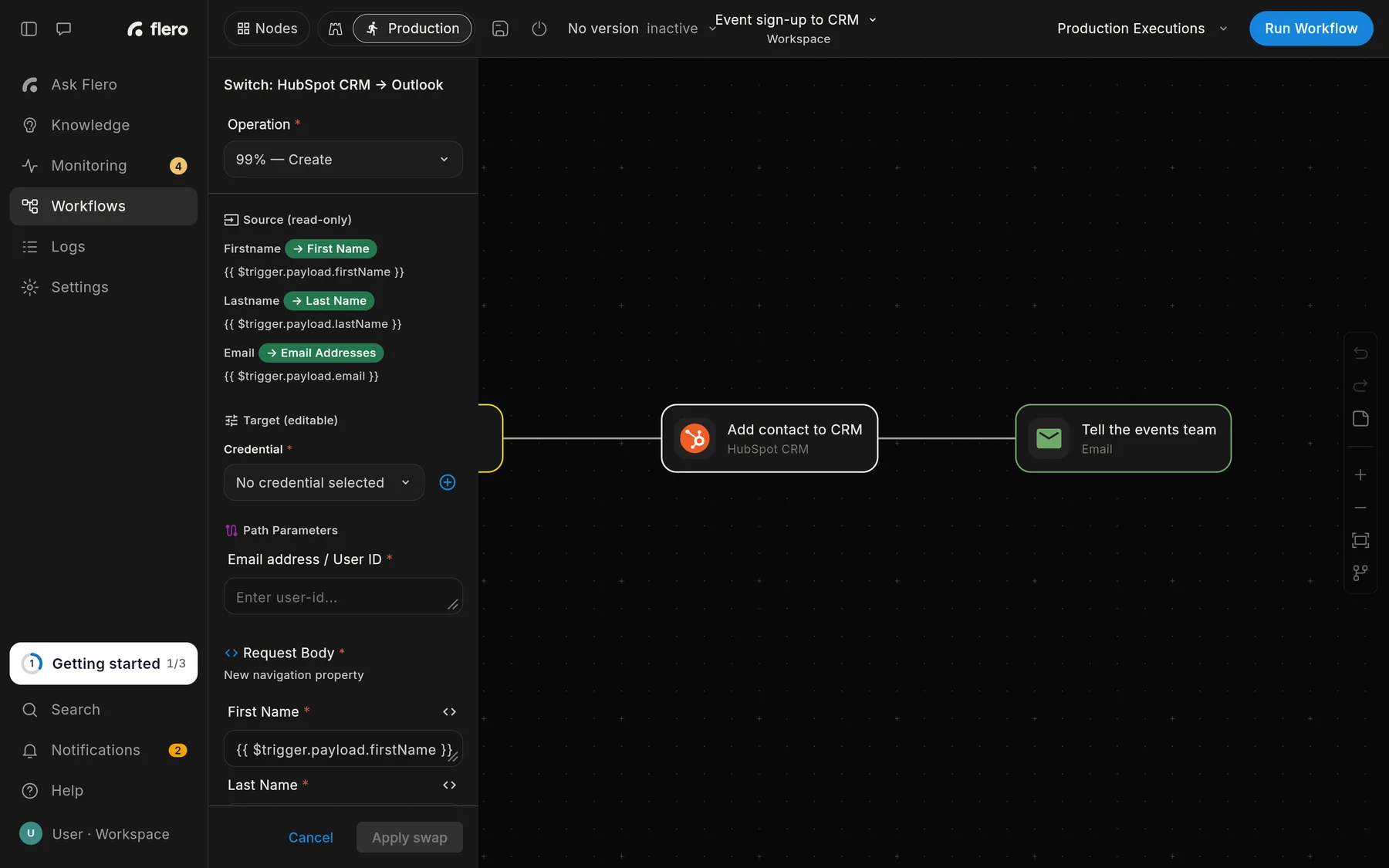
Pick one and the node's panel shows the swap before anything changes:
- Operation: the operation on the new connector.
- Source (read-only): the fields from the old node and where each one goes (→ target), or dropped if the new connector has no matching field.
- Target (editable): the new connector's fields, already filled in from the old ones. Adjust anything that needs it.
- Warnings about later nodes whose expressions read fields the new connector won't produce.
Click Apply swap to make the change, or Cancel to leave the node as it was. If something required is missing, such as a credential for the new service, the panel says what.
Tips & gotchas
- Check downstream expressions. Expressions that read the old node's output by field name may need updating if the new type returns a different shape.
- Credentials don't carry across services. A Salesforce credential can't sign in to HubSpot. Pick or add a credential for the new connector.
Related
Found something out of date? This page lives in the Flero docs content set.